How to Do a Paint Takeoff
Follow this tutorial to learn how to do a takeoff to measure the amount of paint you need for a job.
Please note this video shows imperial measurements as it is from a US account.
Prep Your Page
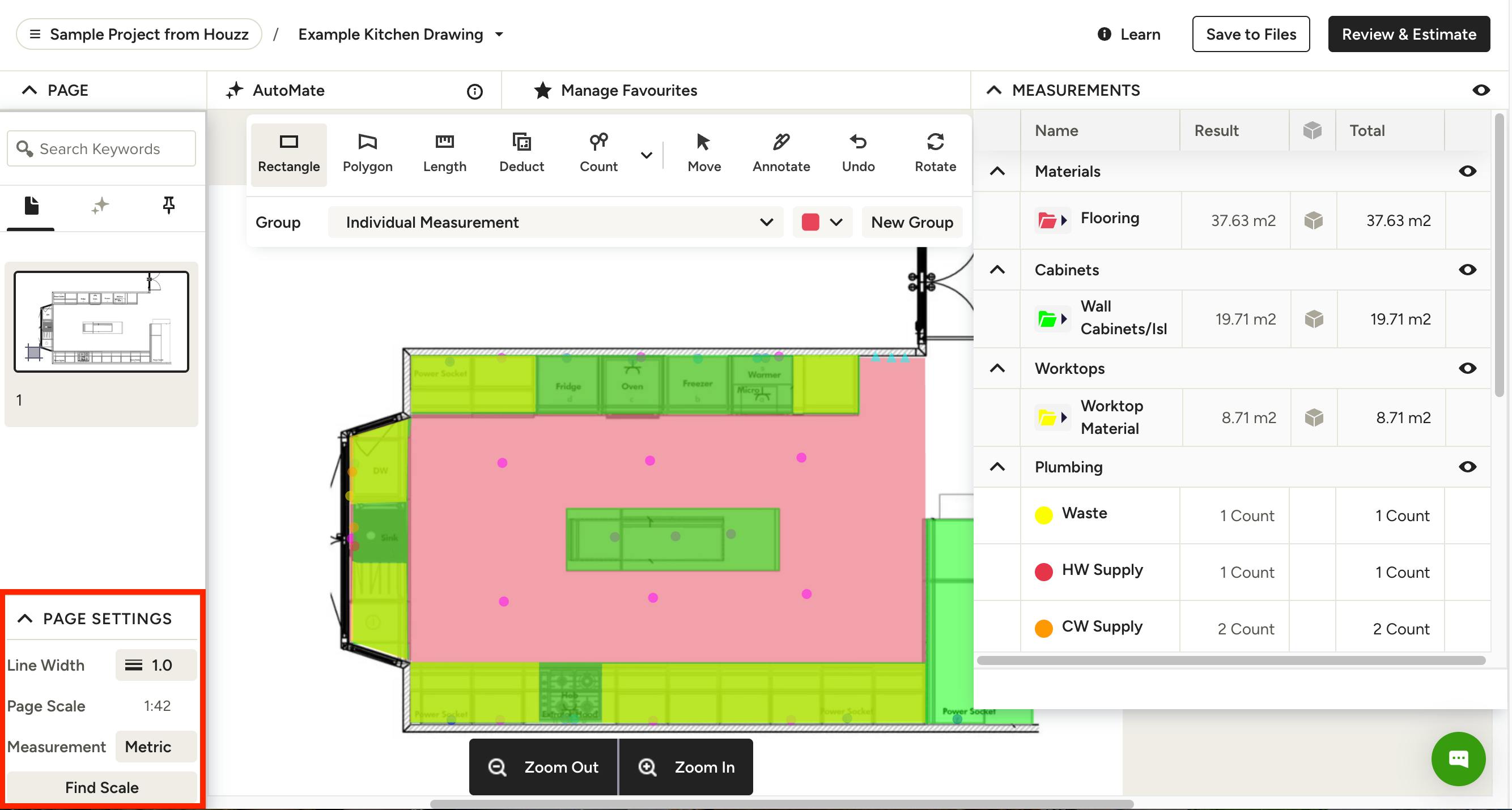
First, you'll need to create a takeoff by uploading a PDF file of your construction plans and set the correct scale before taking any measurements.
Make sure the line width is to your liking so that it’s easy to spot when taking your measurements on the canvas. You’ll find this on the left side of the canvas in Page Settings.
Set Up Groups
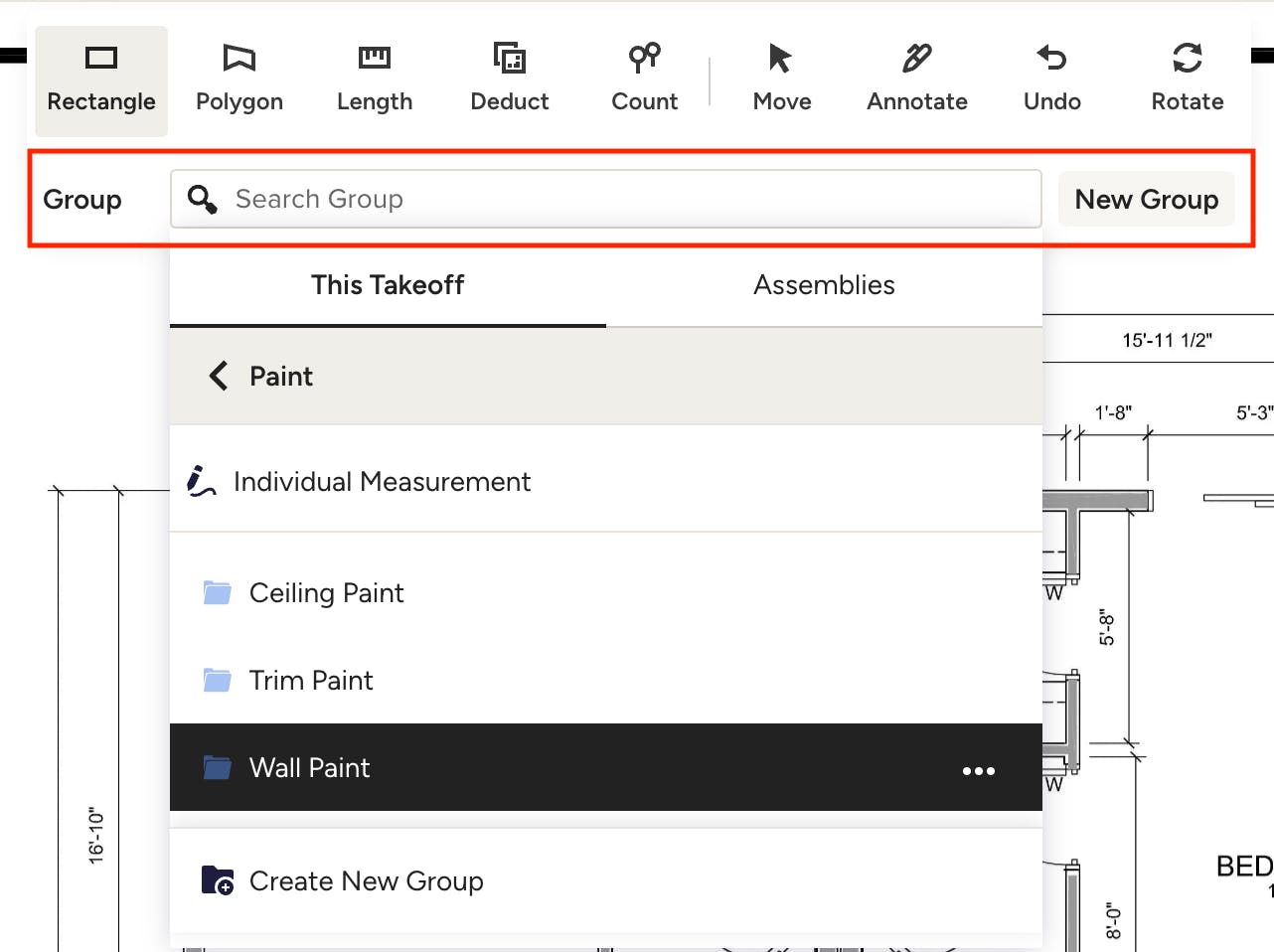
You will either use an existing group from the Group dropdown in your toolbar (if you’ve already set up a paint assembly, this would be the perfect time to use it!), or you can set up a new one. If you use a new group, click New Group, give it a name (e.g. Wall Paint), select a colour and a category. Mark it as a favourite if it’s a group you plan to use often – favourites need to have a unit of measurement assigned to them.
Measure Walls
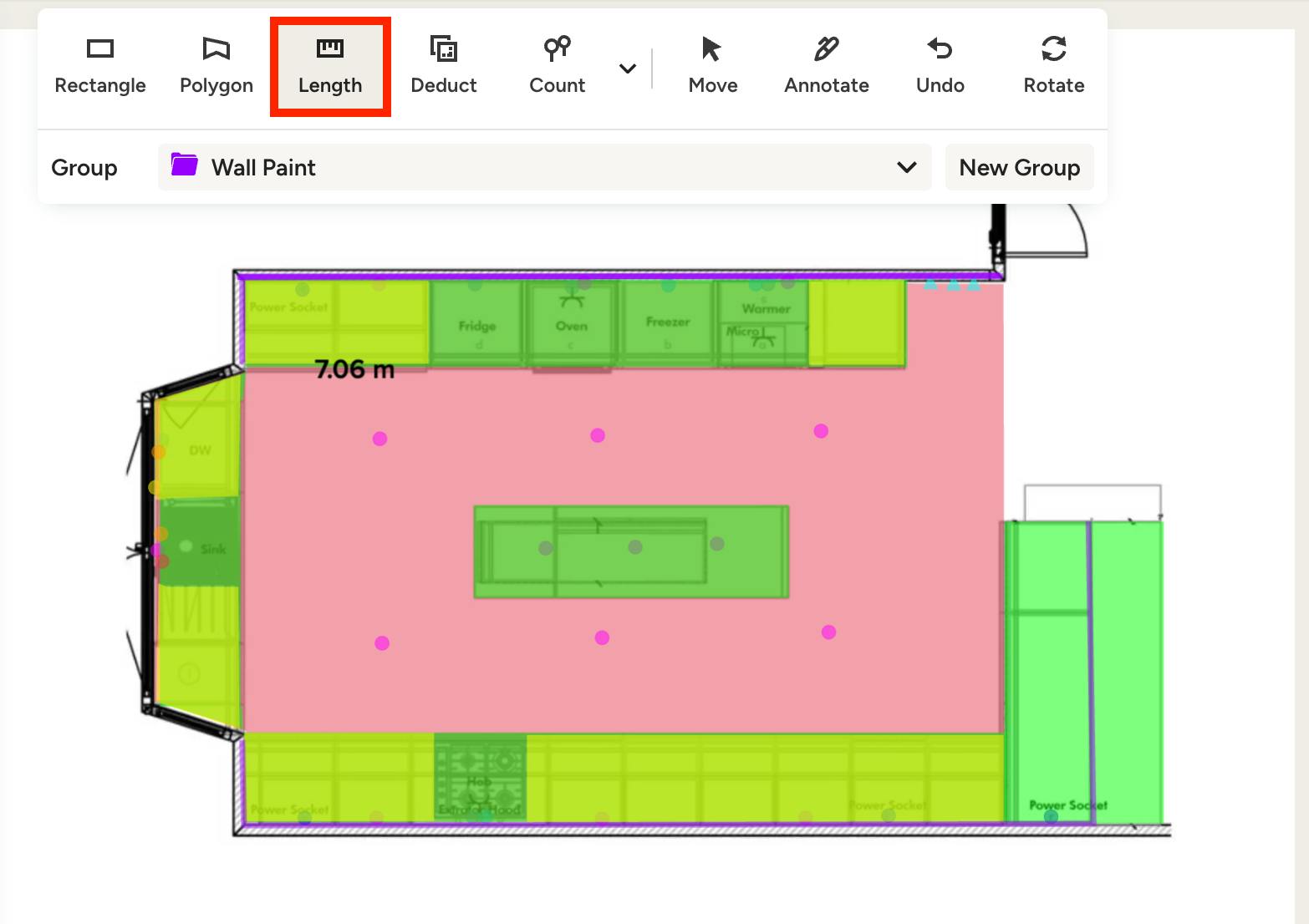
Use the Length tool to take your wall measurements on the plan – select the tool first then choose your group or assembly. On the canvas, click on the end of a wall to start, click again to drop a marker and change directions (like on a corner), and double click (or hit the ‘enter/return’ key) to end the measurement. You can use the ‘delete’ key on your keyboard to undo the last click, allowing you to easily correct a mistake. Check out Takeoff Keyboard Shortcuts for more tips.
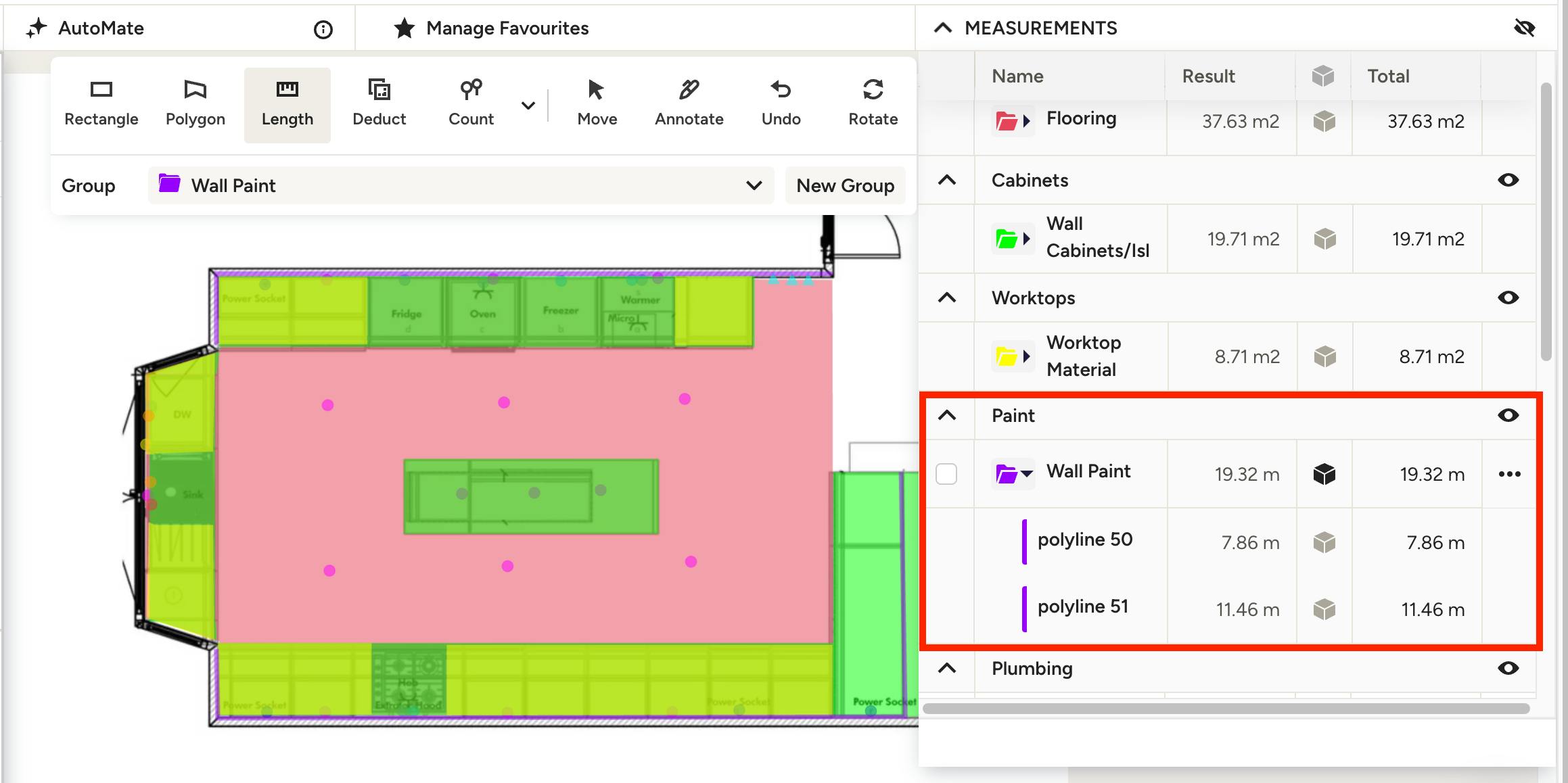
All of the individual measurements will be added to the measurements drawer on the right of the screen in the group folder you selected at the start, giving you a total sum of measurements at the top of the group. Each measurement can be renamed if you want to be able to keep track of them by specific room, level, etc.
For more on creating measurements in takeoffs, check out these resources:
Add Dimension Parameters
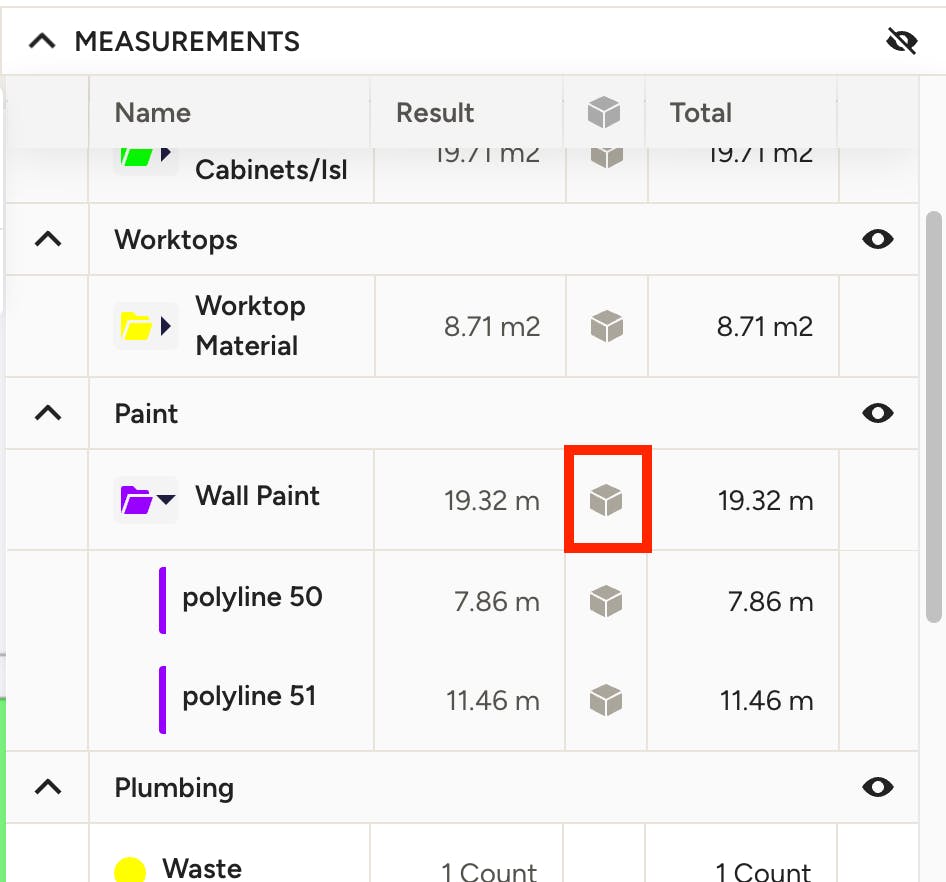
Once all of your wall measurements are done, you can add in dimension parameters by clicking the dimensions cube at the top of your measurements drawer on the group you used.
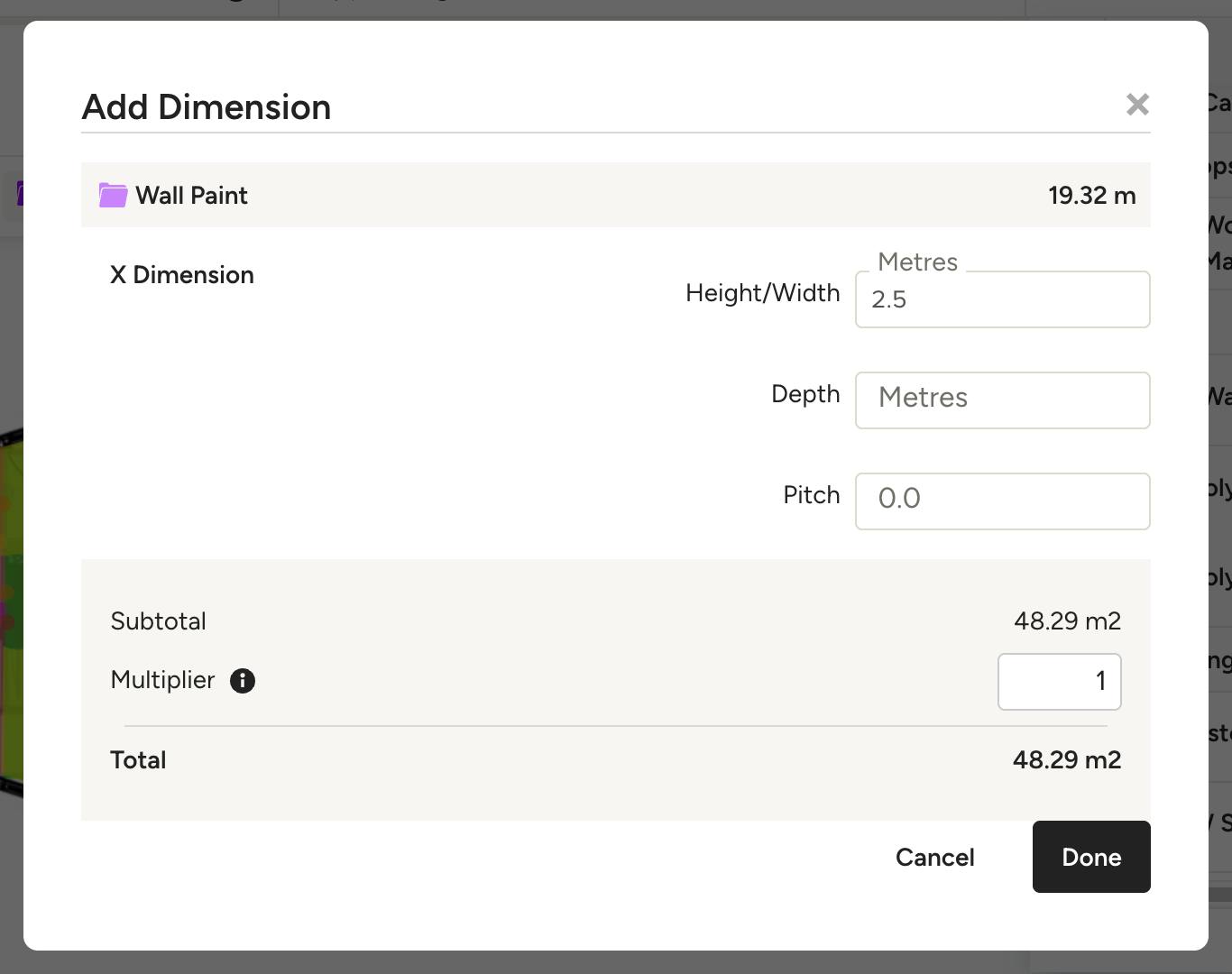
In the modal that appears, you can input height/width, depth and pitch as needed. In this example we know that our walls are 2.5 metres high, so we add that in. This will be multiplied by the linear metres we just measured on the plans, giving us the total square metres of the walls in the group we set up at the beginning.
Pro Tip: You can also add a multiplier to account for walls that need paint on both sides, instead of measuring them twice – just add a 2 to the multiplier parameter on applicable measurements.
Read Adjusting Takeoff Measurements in the Measurements Drawer for a more in-depth tutorial on the Measurement Drawer.
Ceiling Paint
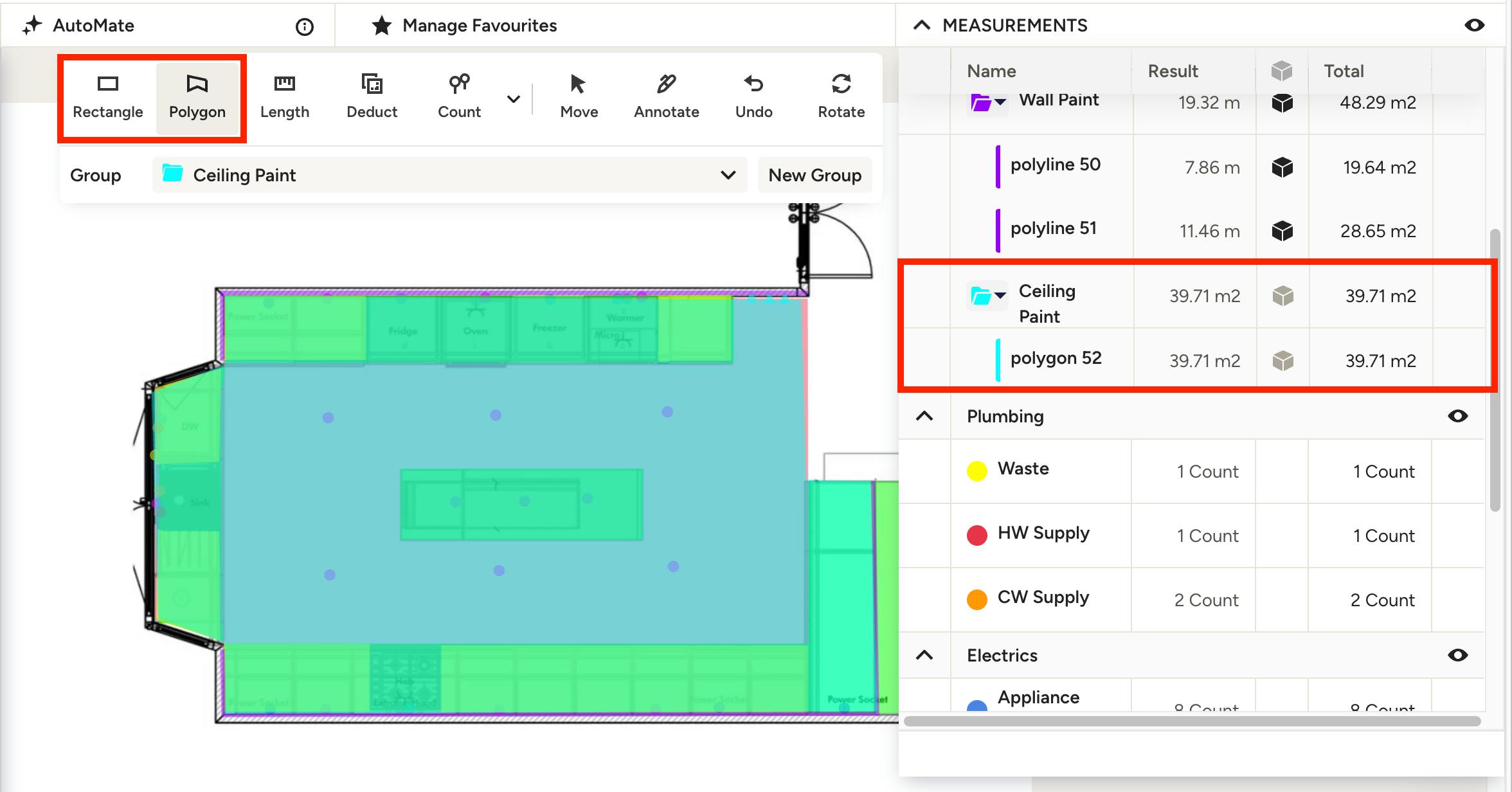
For calculating the amount of paint needed for a ceiling, use the polygon or rectangle tool. Create or select an existing group (e.g. Ceiling Paint) then click to start the measurement, click again to drop a marker and change directions (like on a corner) and double click to end the measurement when you’ve met your starting point again. All of the individual measurements will be added to the measurements drawer on the right of the screen in the group folder you selected at the start, giving you a total sum of measurement in the type you specified for the group.
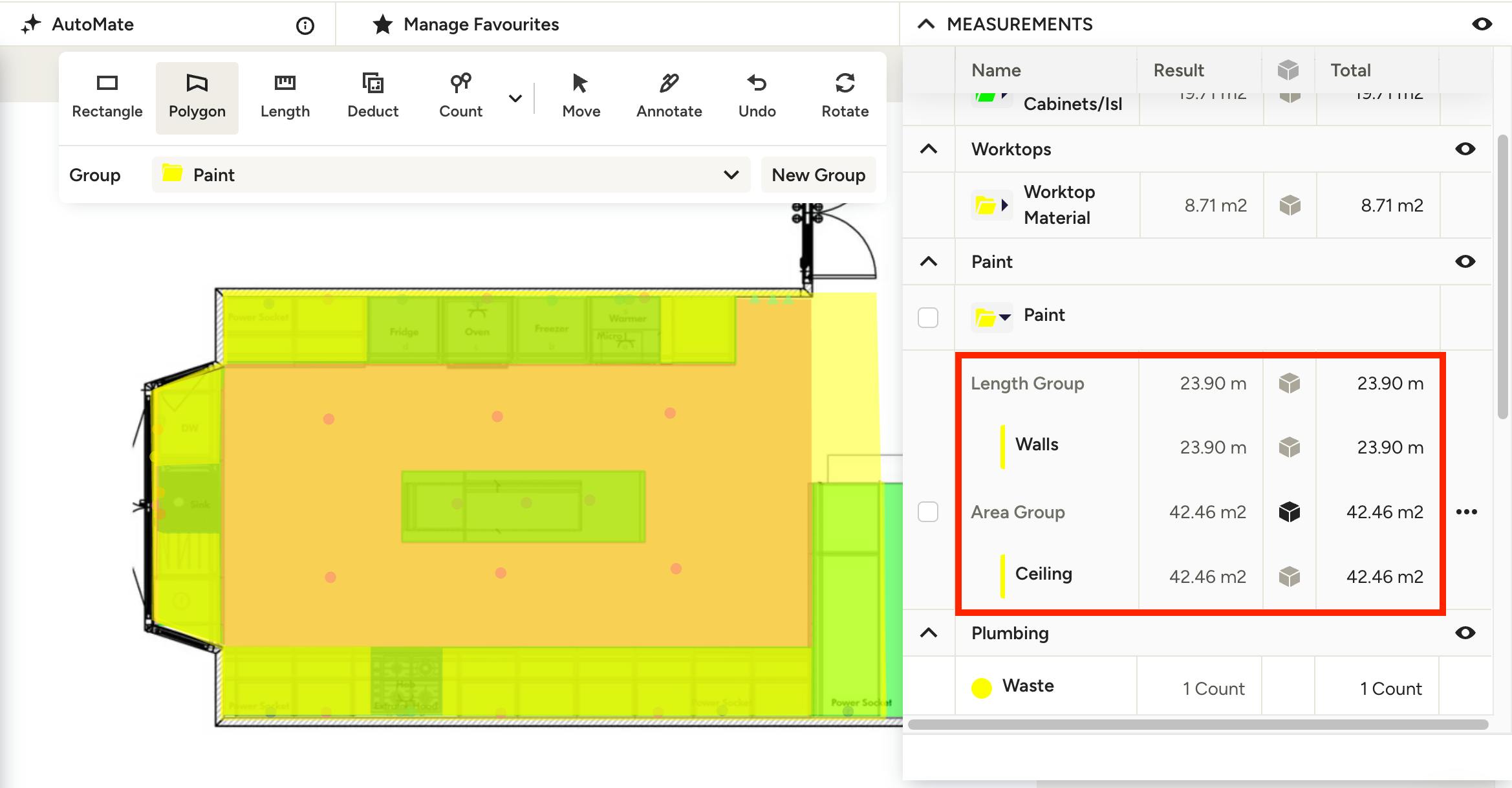
You can also use the same group across multiple tools and the measurements will appear under said group, broken out by type of measurement. For example, if you are using a Paint group that can be applied to both walls and ceilings, the wall measurements would appear under Length Group (linear m) and ceiling measurements would appear under Area Group (m2). You can apply dimension parameters per sub group and the total measurement will be calculated at the top. This can help keep your estimates less complex by having fewer line items.
Hide Layers
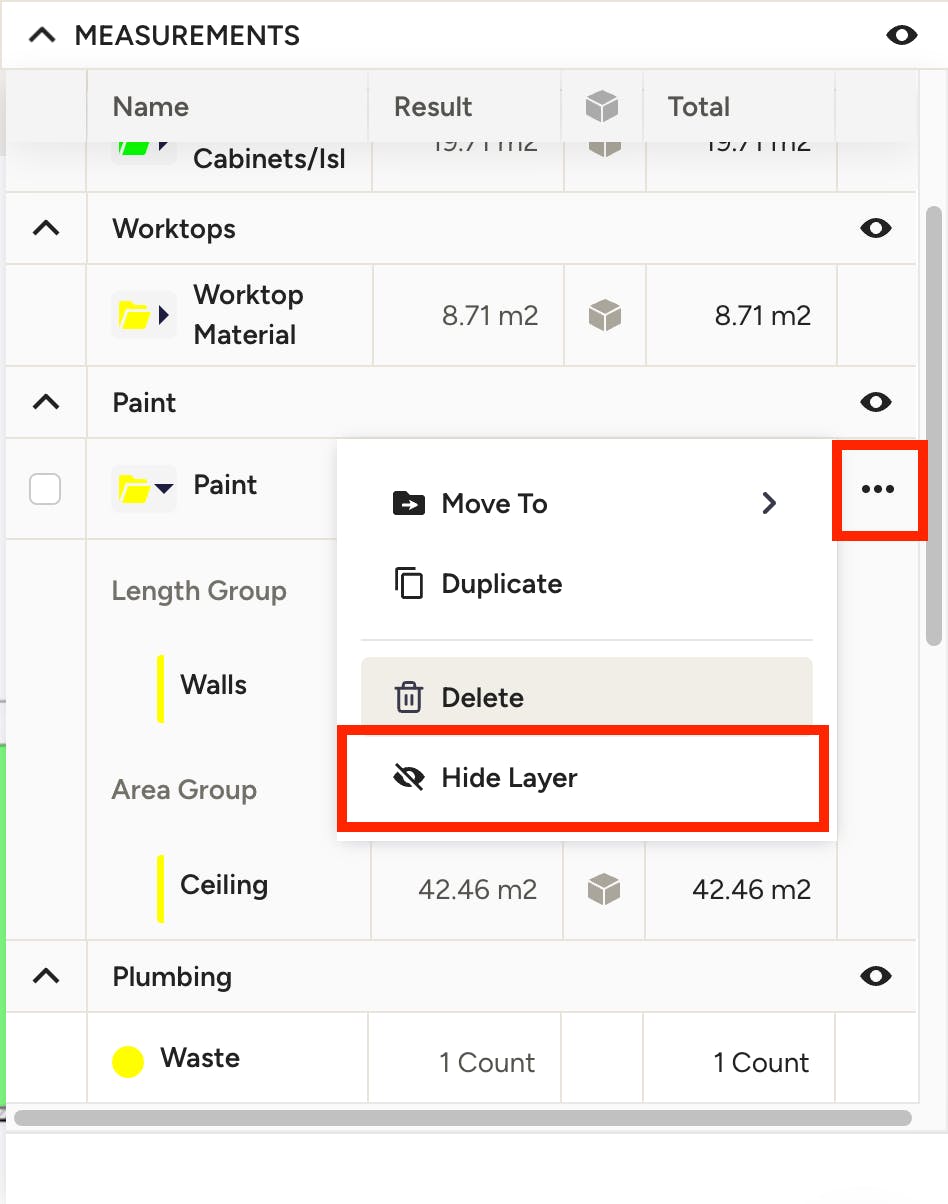
If your canvas is looking cluttered with all of your measurements, try hiding layers in the measurements drawer to clean up your view.
Check out How to Hide a Layer on the Takeoff Canvas for more details.
Moulding Paint
To measure the amount of moulding that needs paint, such as skirting boards or architraves, you can use the wall and/or ceiling measurements you just took as a starting point. While you can always use the Length tool to manually measure moulding, the following methods can help save time.
Perimeter Measurements
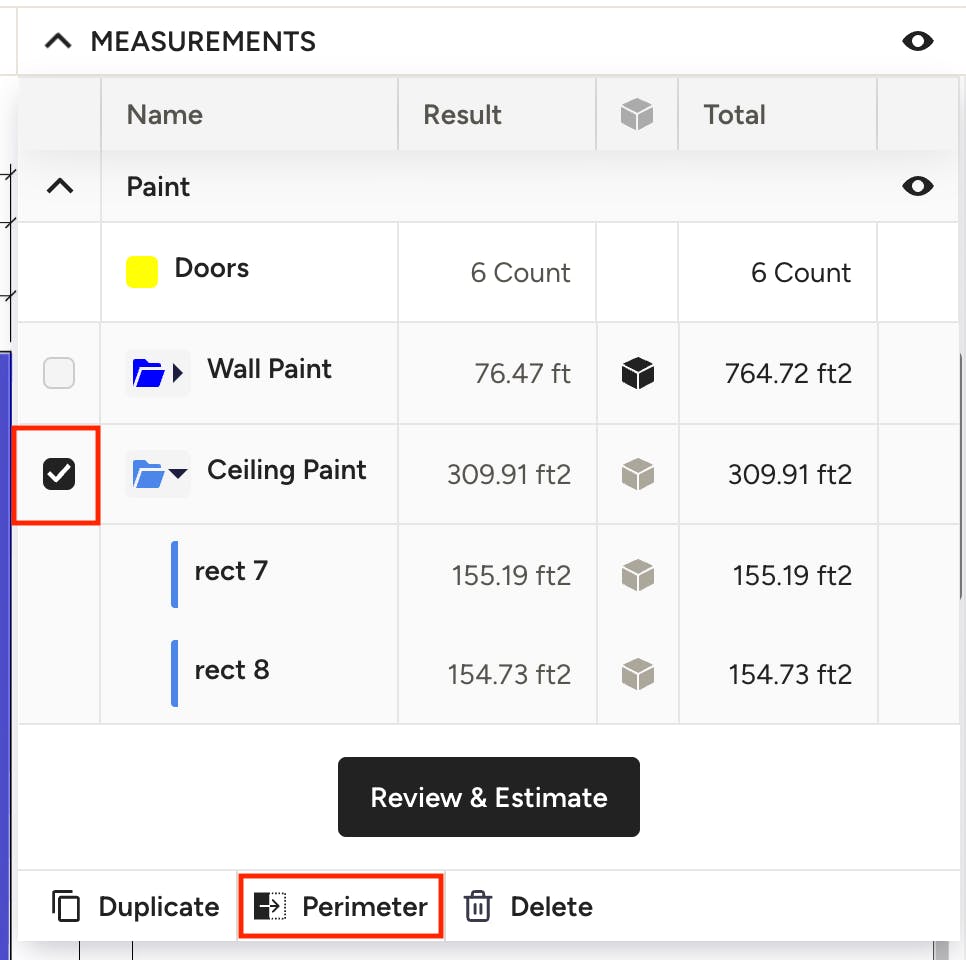
You can quickly get the perimeter measurements for any area (nonlinear) you’ve already defined, like ceilings or flooring. This method works well for moulding that spans the entire perimeter of an enclosed space, like coving or skirting boards. To do so, select the tick box to the left of the group you wish to get the perimeter of, then click Perimeter at the bottom of the measurements drawer.
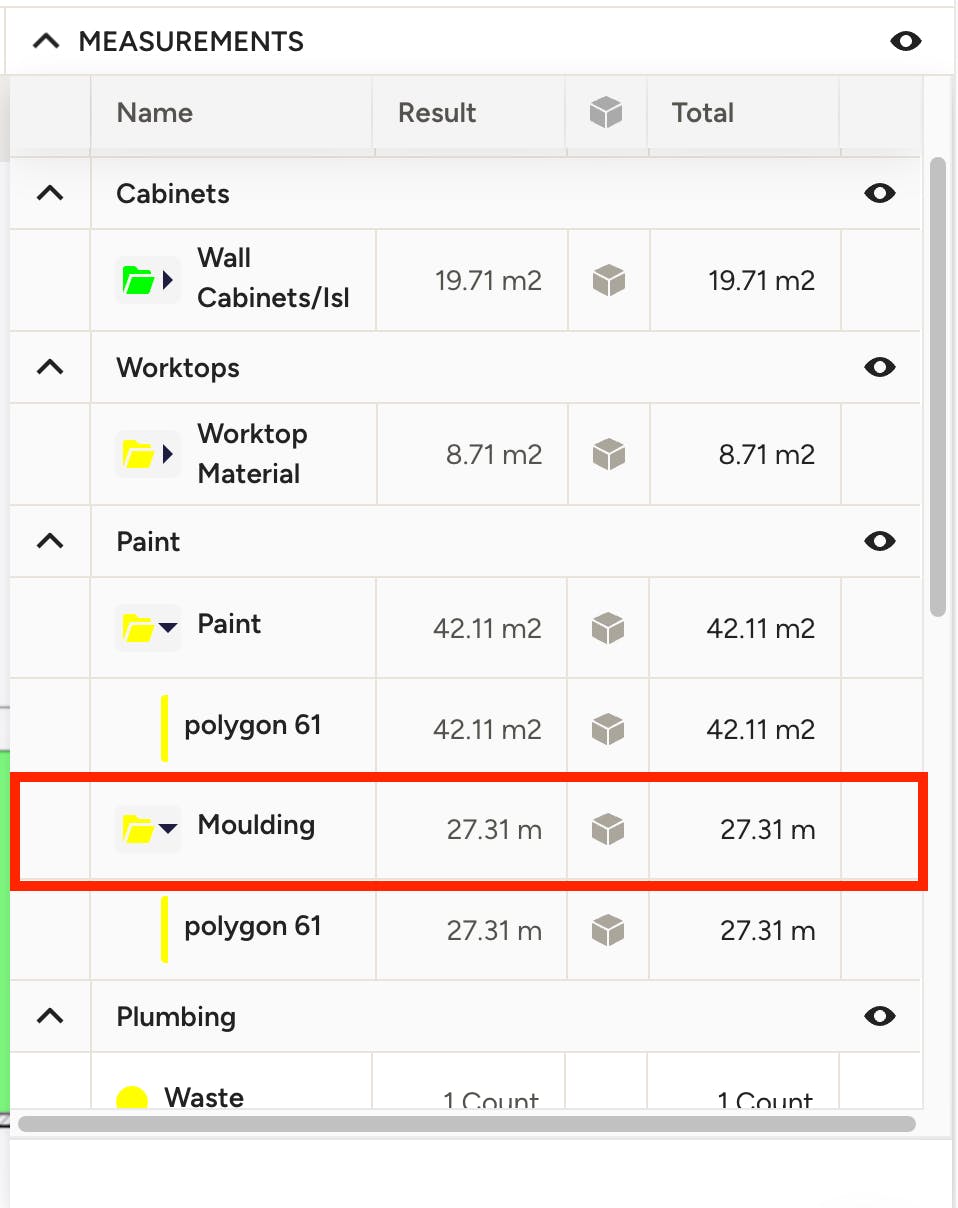
Rename the new group (e.g. Moulding). You’ll see the perimeter measurements in linear metres. You can adjust the dimension parameters of the group as needed.
Duplicate Group & Remove Height
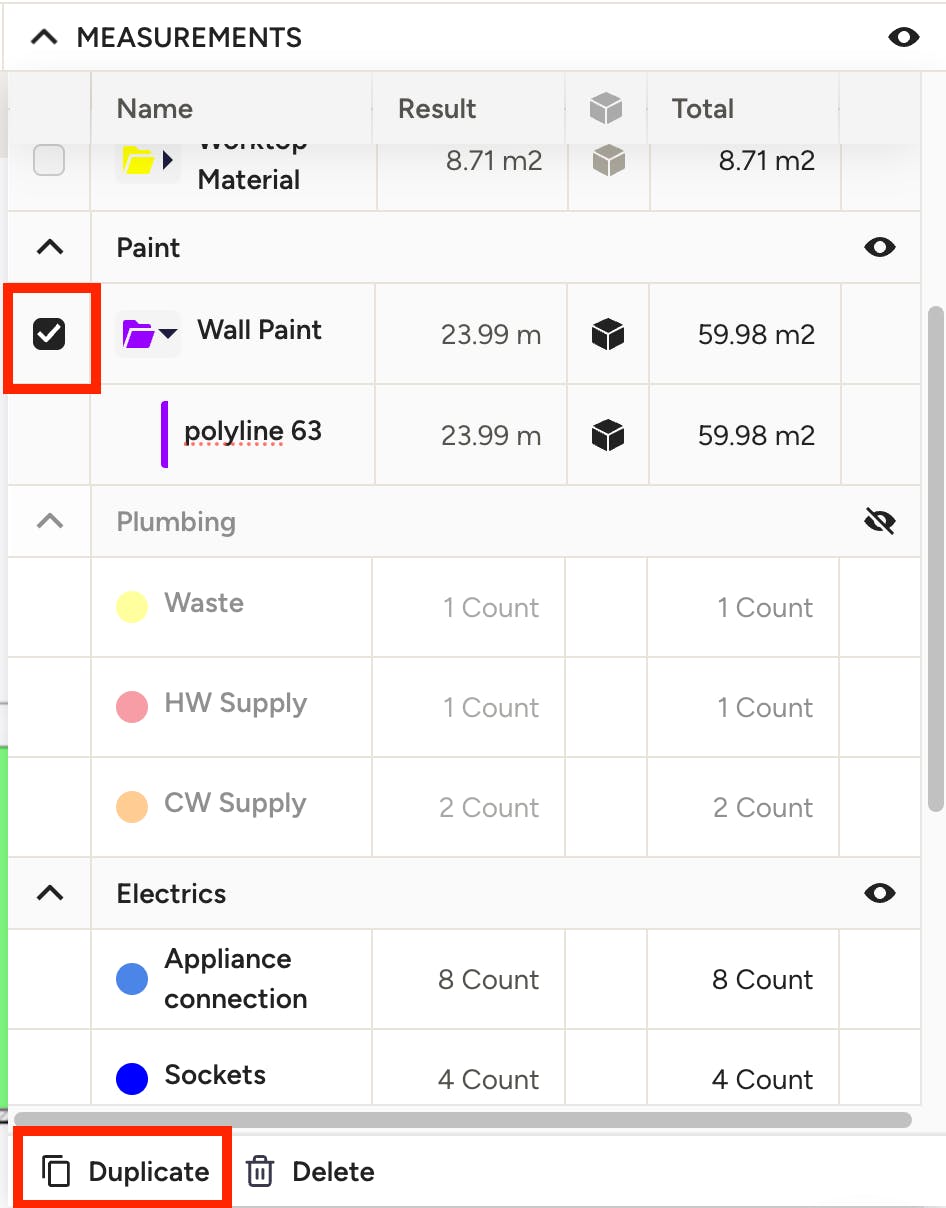
To get trim measurements from a linear group, like walls, you can duplicate the group, rename it, and remove the height parameter. To do so, select the tick box to the left of the group you wish to use, then click Duplicate at the bottom of the measurements drawer.
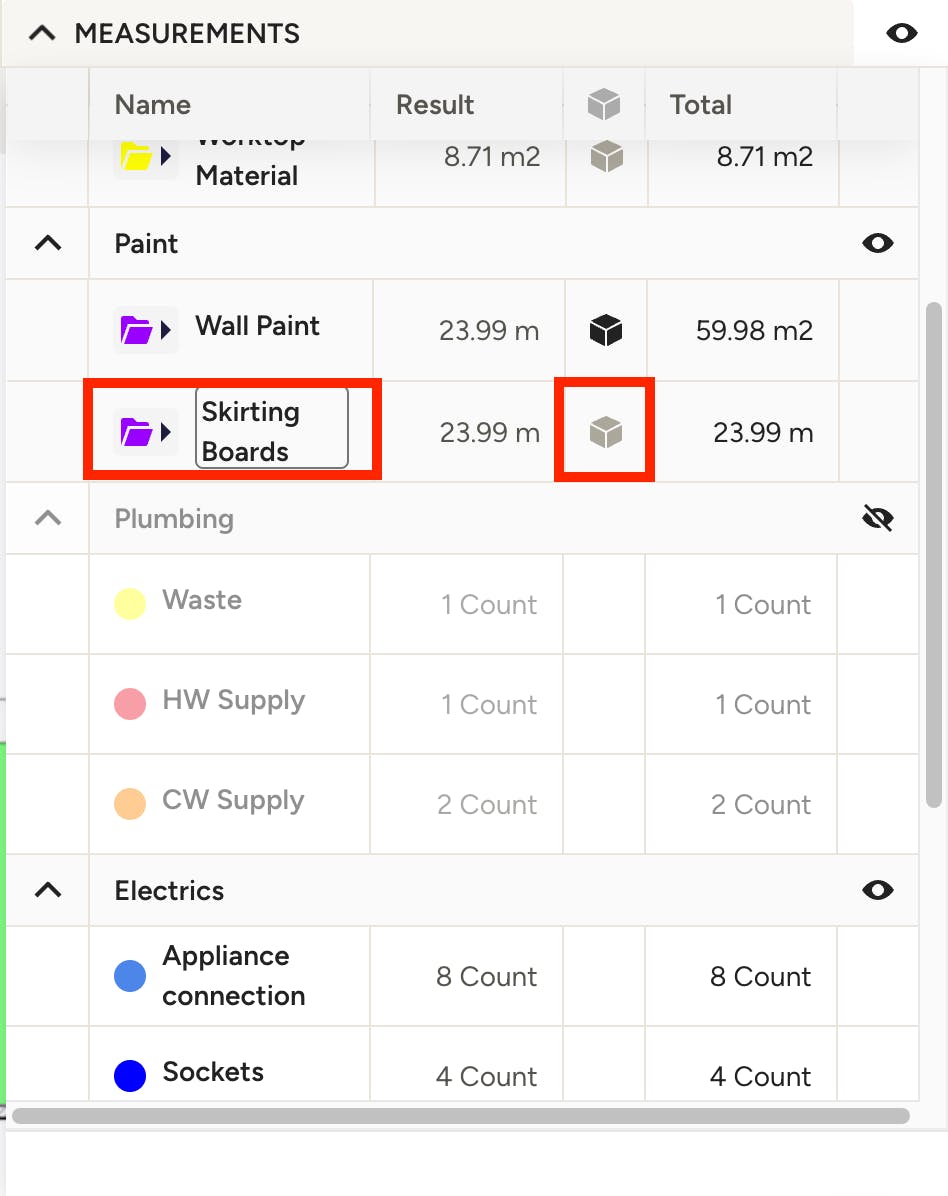
Rename the new group (e.g. Skirting Boards). Click the Parameters cube on the new group and reset the height to zero. This will give you the linear measurements of the moulding for that wall group.
Add Counts
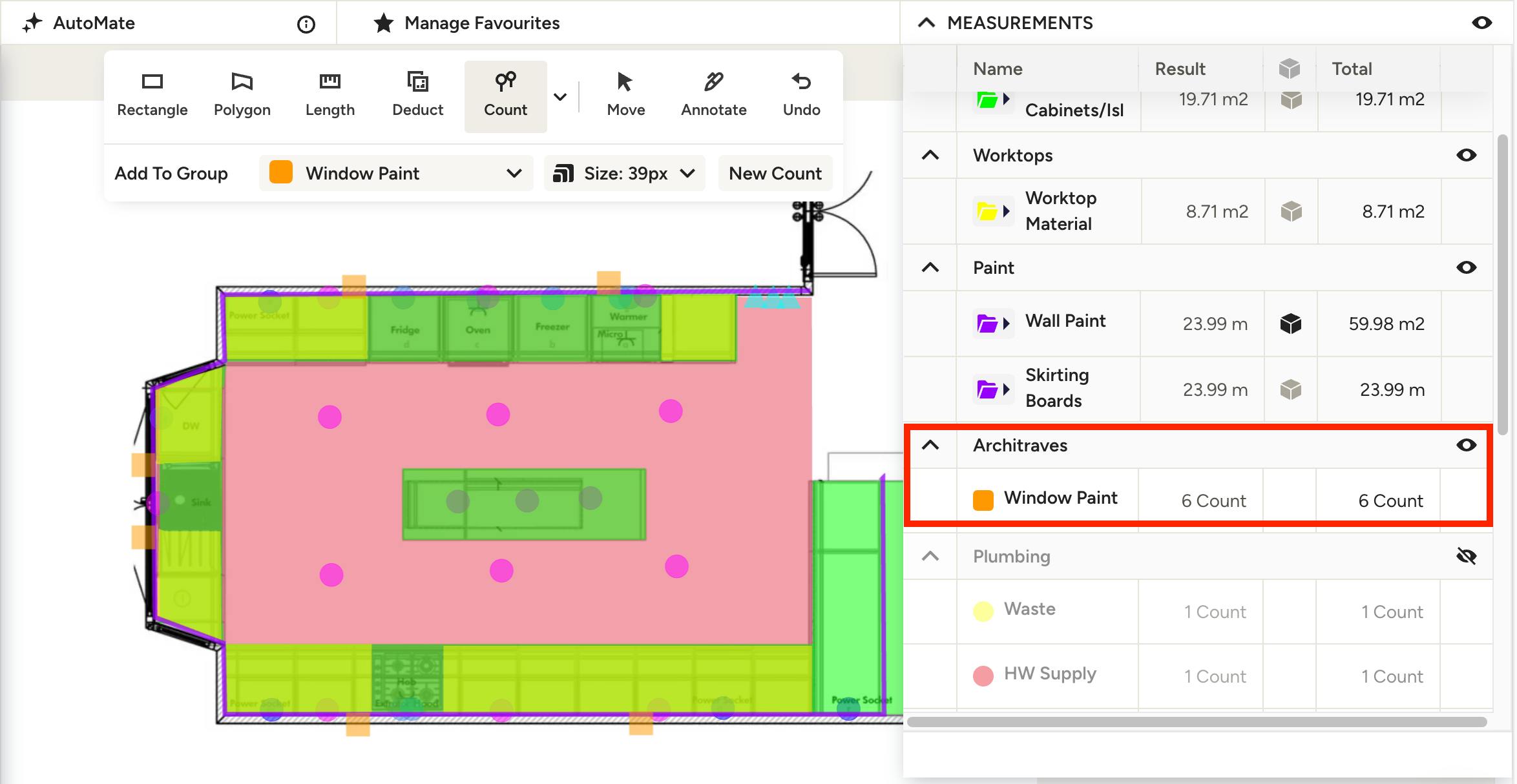
To account for components other than walls or ceilings that need paint, such as windows and doors, use the Count tool and either create or select an existing group (e.g. Window Paint) then click the plans wherever a window exists. You’ll see the overall count in the group in the measurements drawer on the right.
Clone Page
Once you have a page with measurements that can be reused or repurposed for another material, like a plasterboard takeoff, you can clone that page and rename it to save yourself the hassle of taking measurements again.
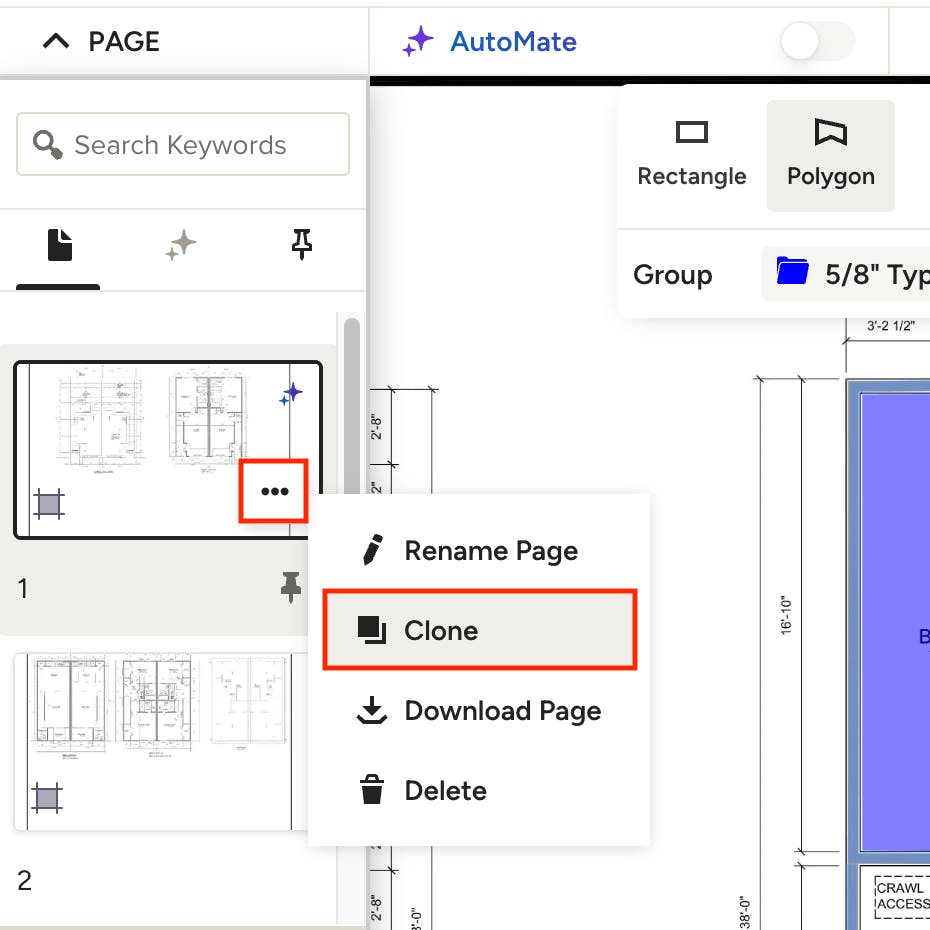
Clone a page by using the three dot menu on the thumbnail of the page you wish to clone in the Page section on the left side of your screen. Click Yes when asked if you want to clone with measurements, then rename the page according to the type of takeoff you’re doing, like Plasterboard.
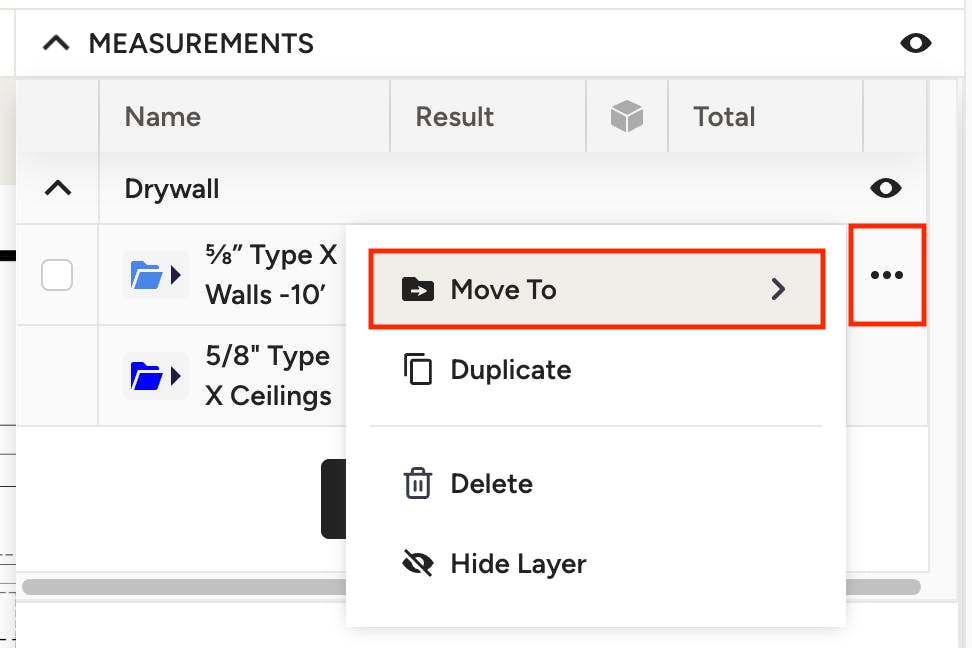
On the new page, you can move the existing measurement(s) to a new group from the measurements drawer, so that you don’t have to re-measure. Click the three dots to the right of the group you wish to move, select Move To, then choose an existing group or create a new one. You can also delete any unnecessary groups from the new page and add additional groups as needed.
Create Estimate
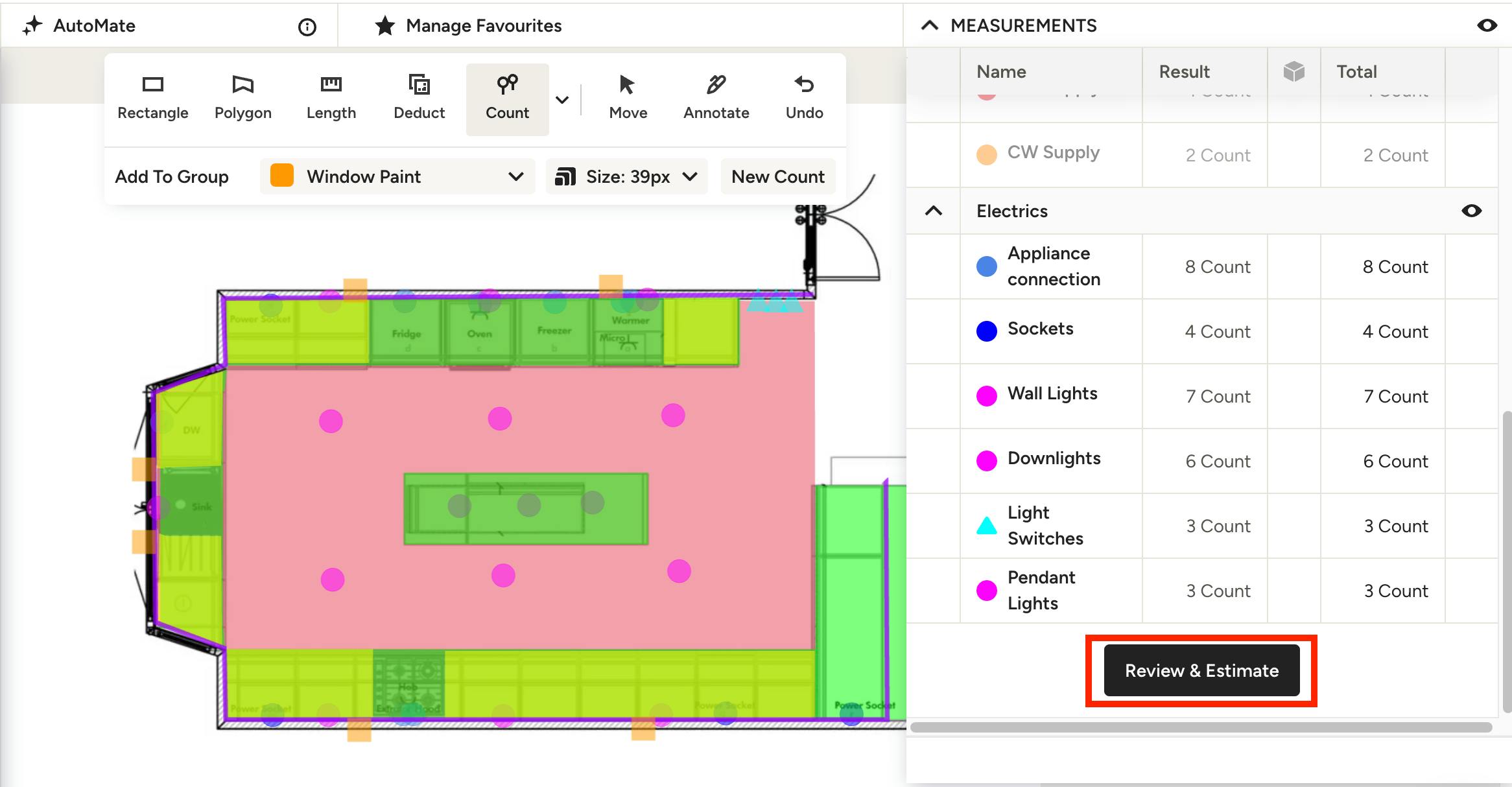
Once your measurements are complete, you can transfer your takeoff measurements into an estimate. Learn more about this step in How to Use Takeoffs on Houzz Pro.