How to View Your Schedule Overview
When you use the Houzz Pro Schedule for your projects and leads, you can make sure everything stays on track as projects progress. While you can create and view a detailed schedule for each individual project, you can also view all projects in one place using your schedule overview.
In the schedule overview section on both desktop and mobile, you can view a detailed breakdown of your scheduled items across all your projects and leads. This big picture overview quickly allows you to see the phase each project or lead is in so you can keep everything on track.
On desktop, you can also switch to the team view – a calendar that shows what every team member and subcontractor has scheduled across all your projects and leads. This makes it easy to coordinate your team and catch conflicts before they happen.
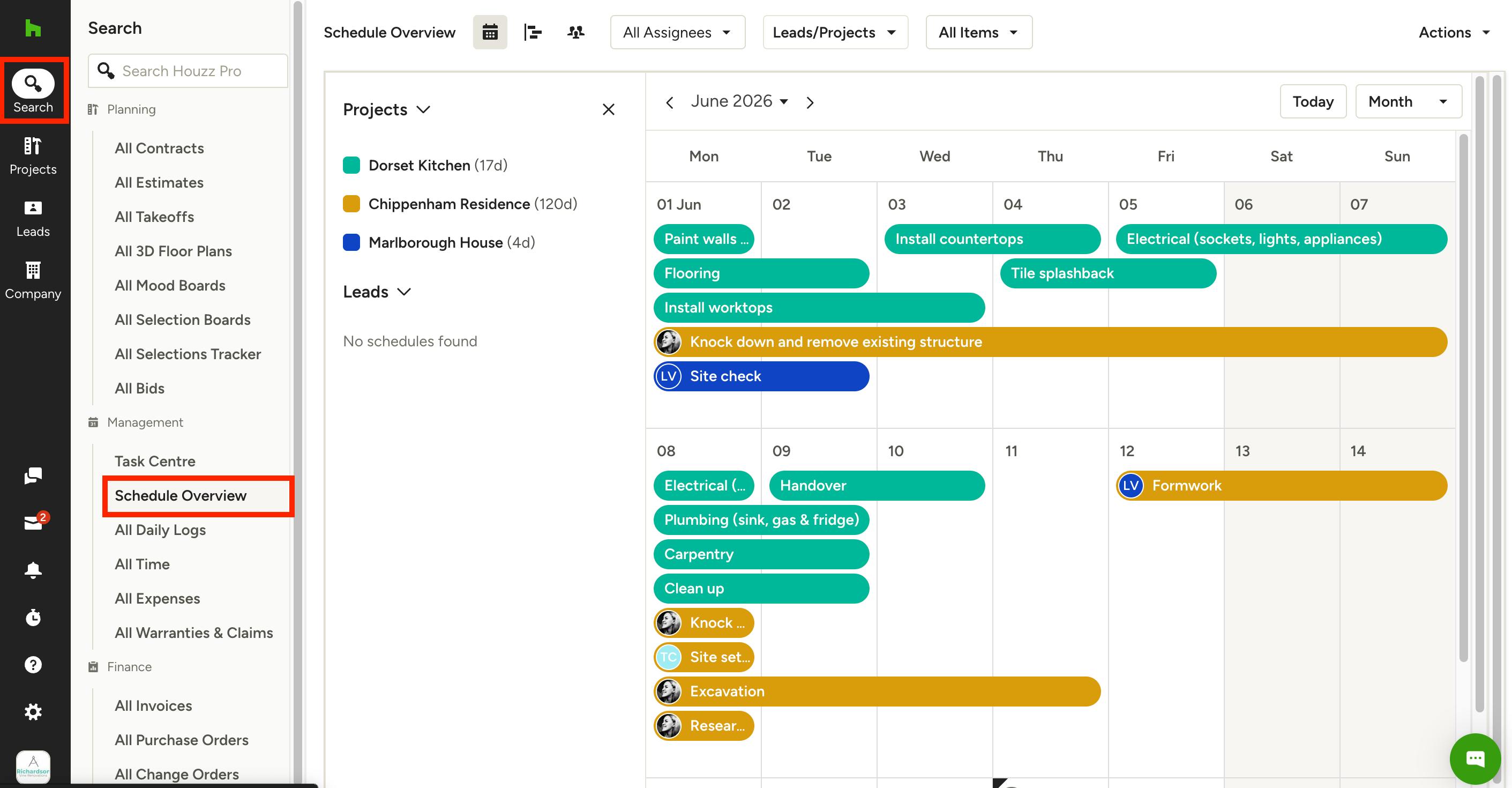
Schedule Overview Details
To access schedule overview on desktop, select the Search icon in the left-hand navigation, and click on Schedule Overview
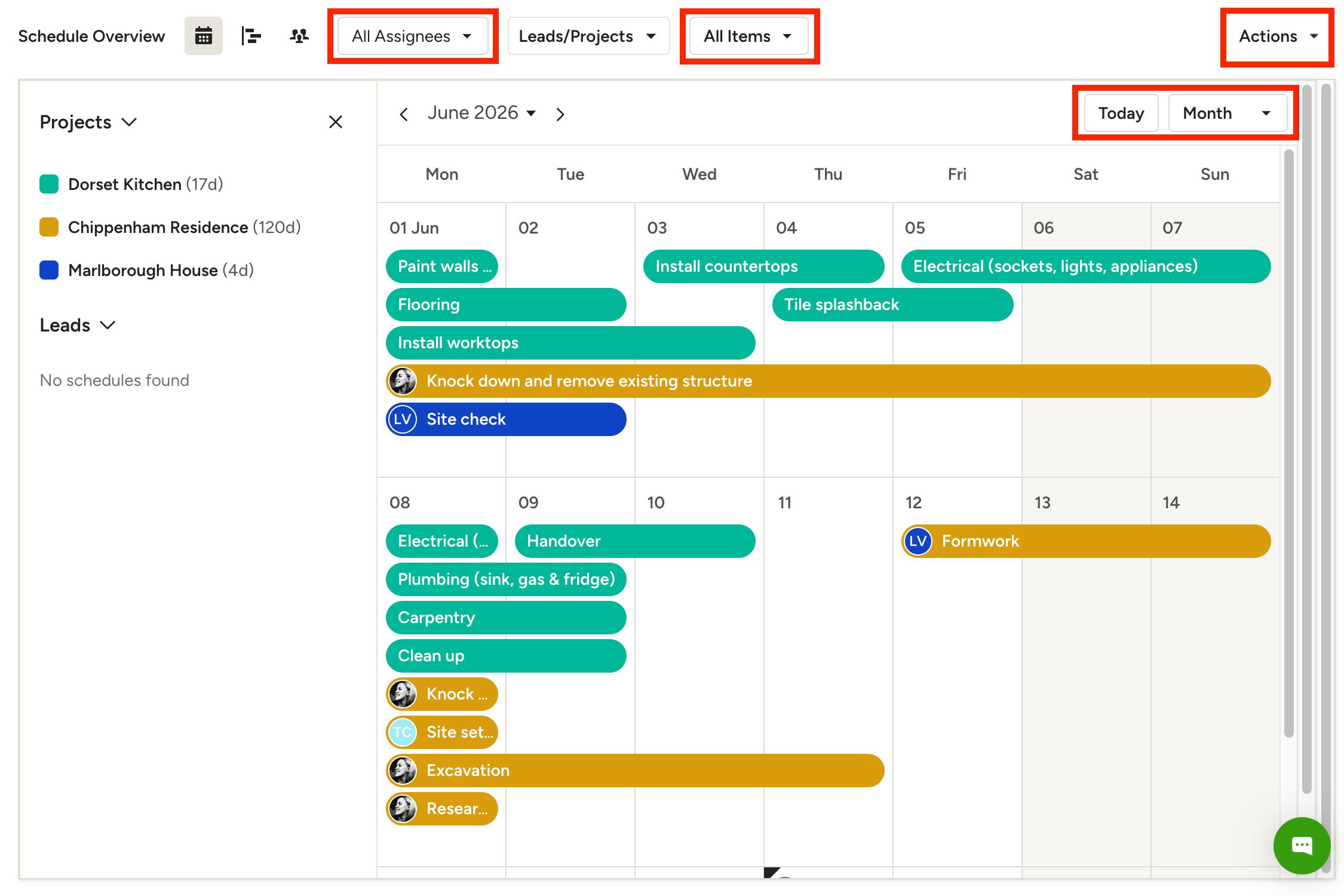
Once in the schedule overview, you can easily customise what is shown. At the top, you can:
- Select to view your schedule on a daily, weekly or monthly level.
- Adjust schedule settings, such as work day settings, exceptions and templates, in the Actions dropdown.
- Filter by assignees and/or decide which items to include (Open, Completed, or All).
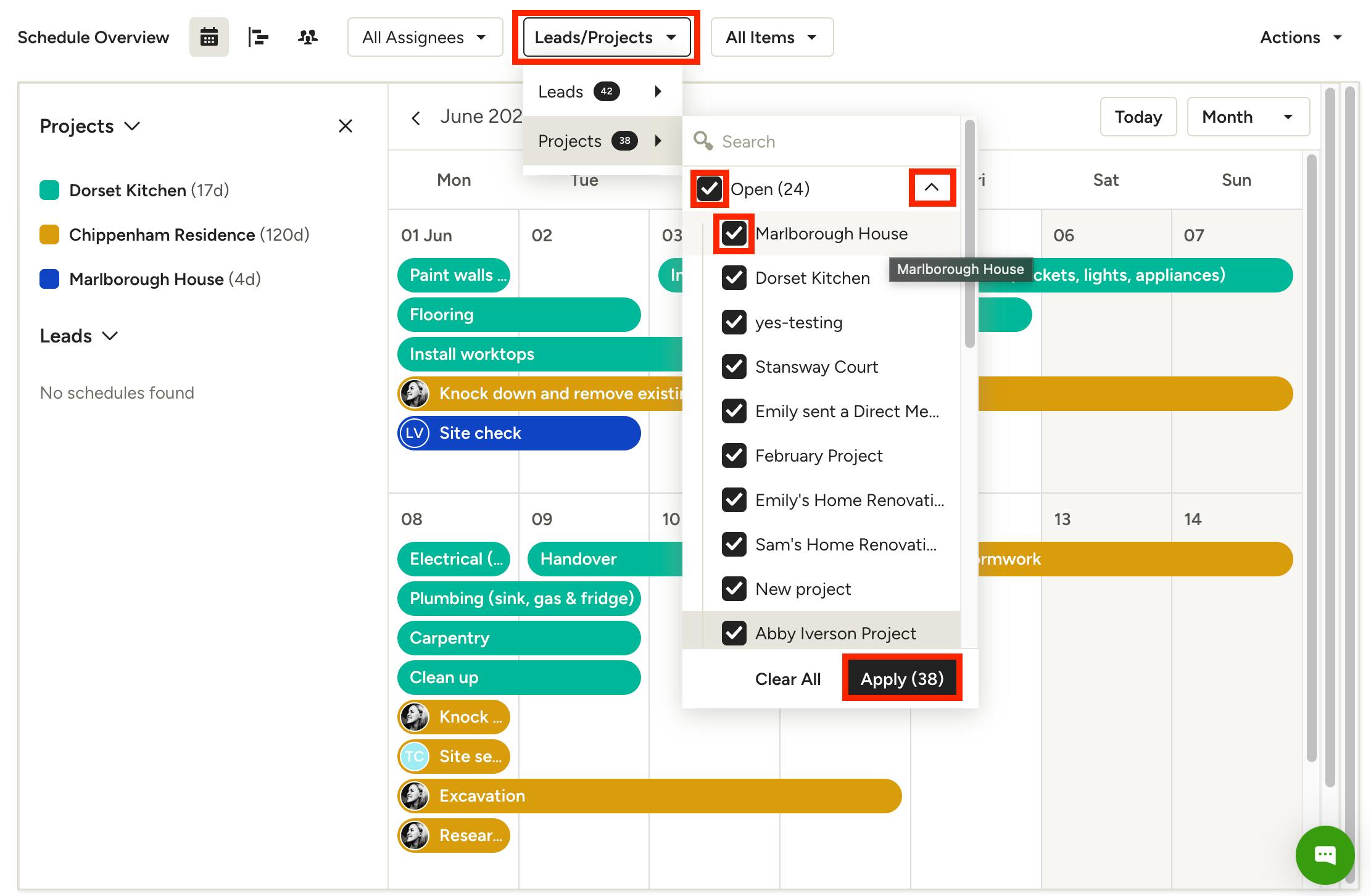
Adjust Included Projects and Leads
In the Leads/Projects dropdown filter, you can edit which projects and leads appear in your schedule overview.
For leads, your individual leads will be listed – de-select the checkbox next to a lead if you would like to remove it from your overview.
For projects, they will be organised by project status – Open, In Progress, Done, Paused and Closed. De-select the checkbox next to the status to remove all projects listed under that status. If you would like to de-select individual projects instead, click the ^ icon next to the status, and a list of individual projects will appear. De-select the checkbox next to the project you would like to remove from your overview.
After your changes are complete, be sure to click Apply to adjust what is shown in your schedule overview.
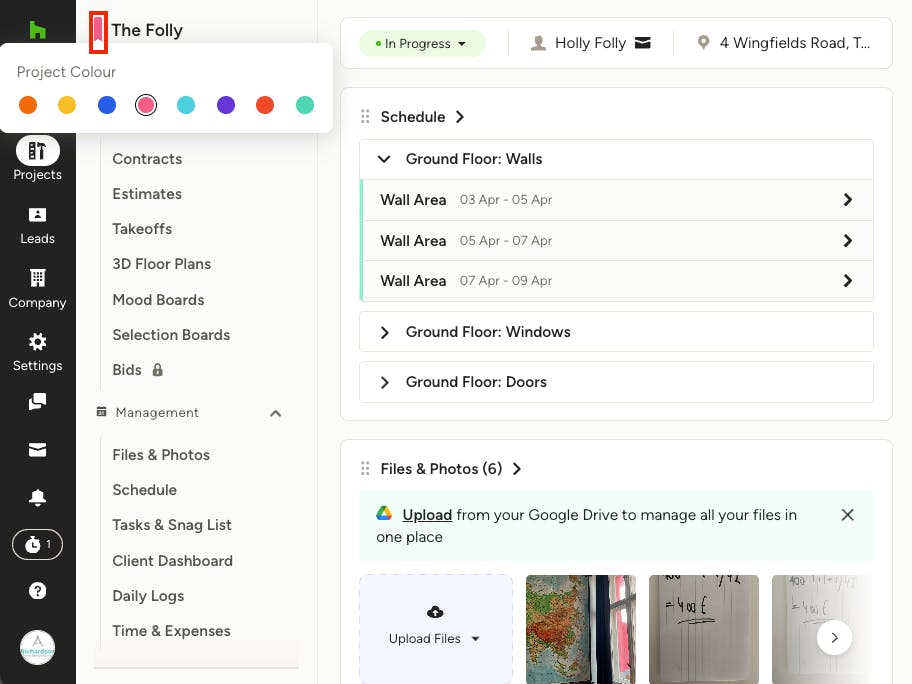
Change Project Colours
Your selected projects and leads will appear in the left menu. The project colours included in your schedule overview are based on the individual project settings.
If you would like to change the colour used for a project, you can do this on the individual project overview page next to the project name, as shown below.
Please Note: At this time, you can only adjust the colour used for projects, but not for leads.
Schedule Overview Formats
In addition to the default calendar format (as outlined above), you can also view the schedule overview in both Gantt and Team Calendar views (desktop only). Let's go over each one.
Gantt Schedule Overview
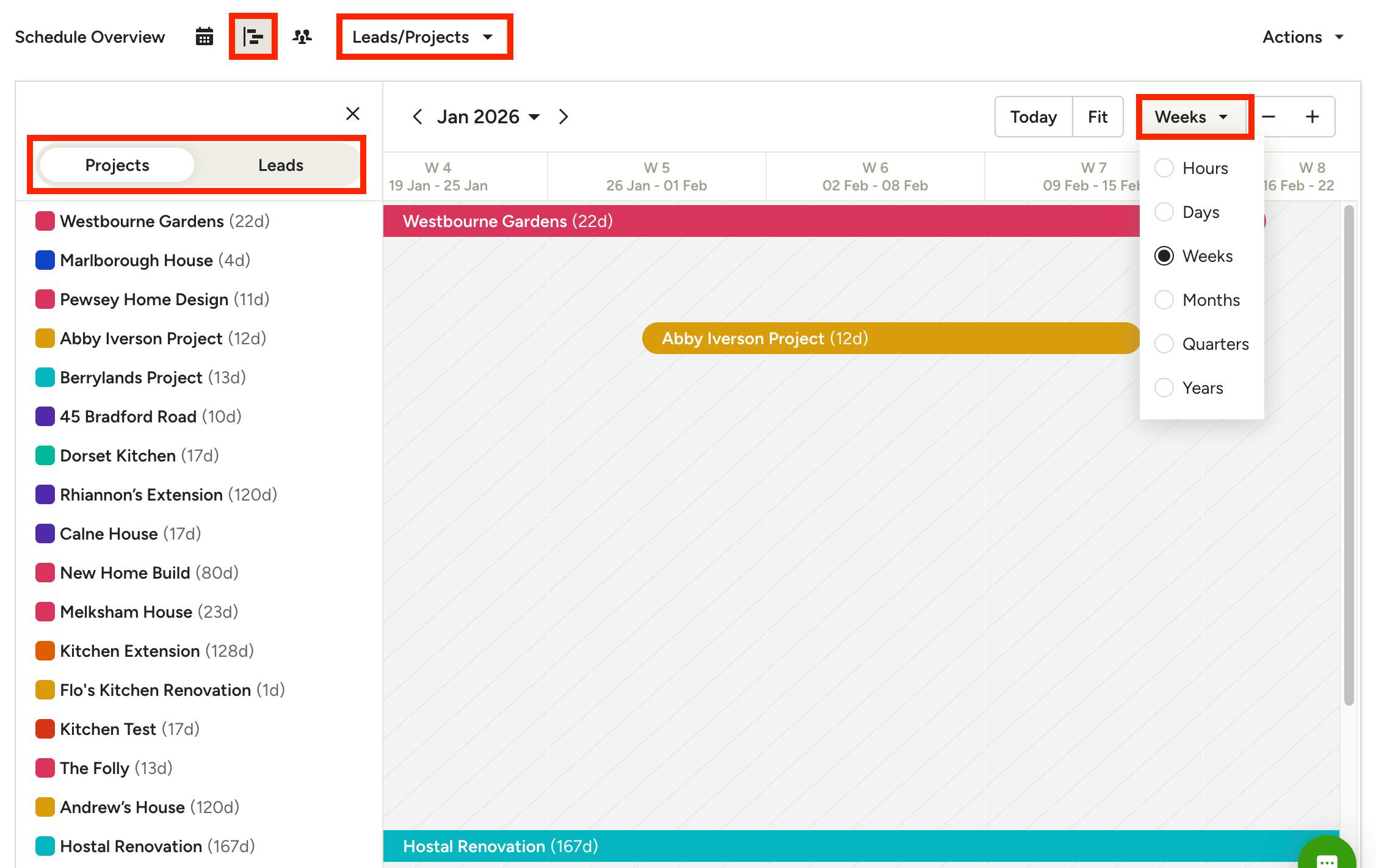
With the Gantt view, you can make more granular adjustment to the timeline – you can filter by hours, days, weeks, months, and even quarterly or yearly for a higher level overview.
Just like with the calendar view, you can adjust which projects/leads appear in the filter at the top. You can also use the Projects and Leads tabs in the left menu to adjust your view.
Team Calendar Schedule Overview
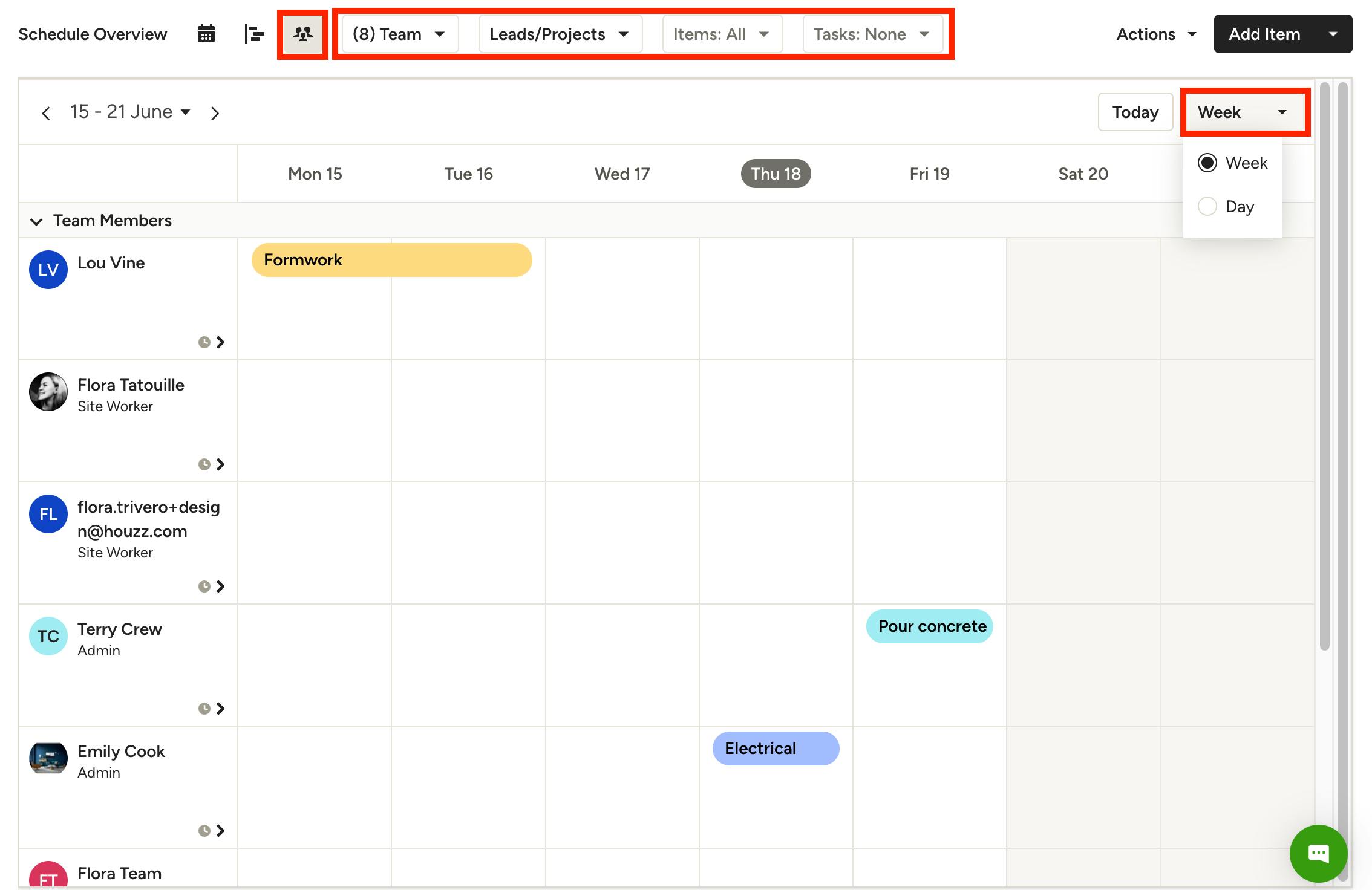
The Team Calendar view gives you a unified calendar showing what every team member and subcontractor has scheduled – across all projects and leads – in one place. Use it to spot conflicts, balance workloads, and keep your crew coordinated without jumping between individual project schedules.
Click the People icon to get started. At the top of the calendar, you can:
- Adjust which team members and subcontractors appear (only team members appear by default)
- Adjust which projects/leads appear
- Filter by Items and/or Tasks (Open, Completed, All, None)
On the right side of your calendar, you can select to see a full week of scheduled items, or you can zoom in to a single day.
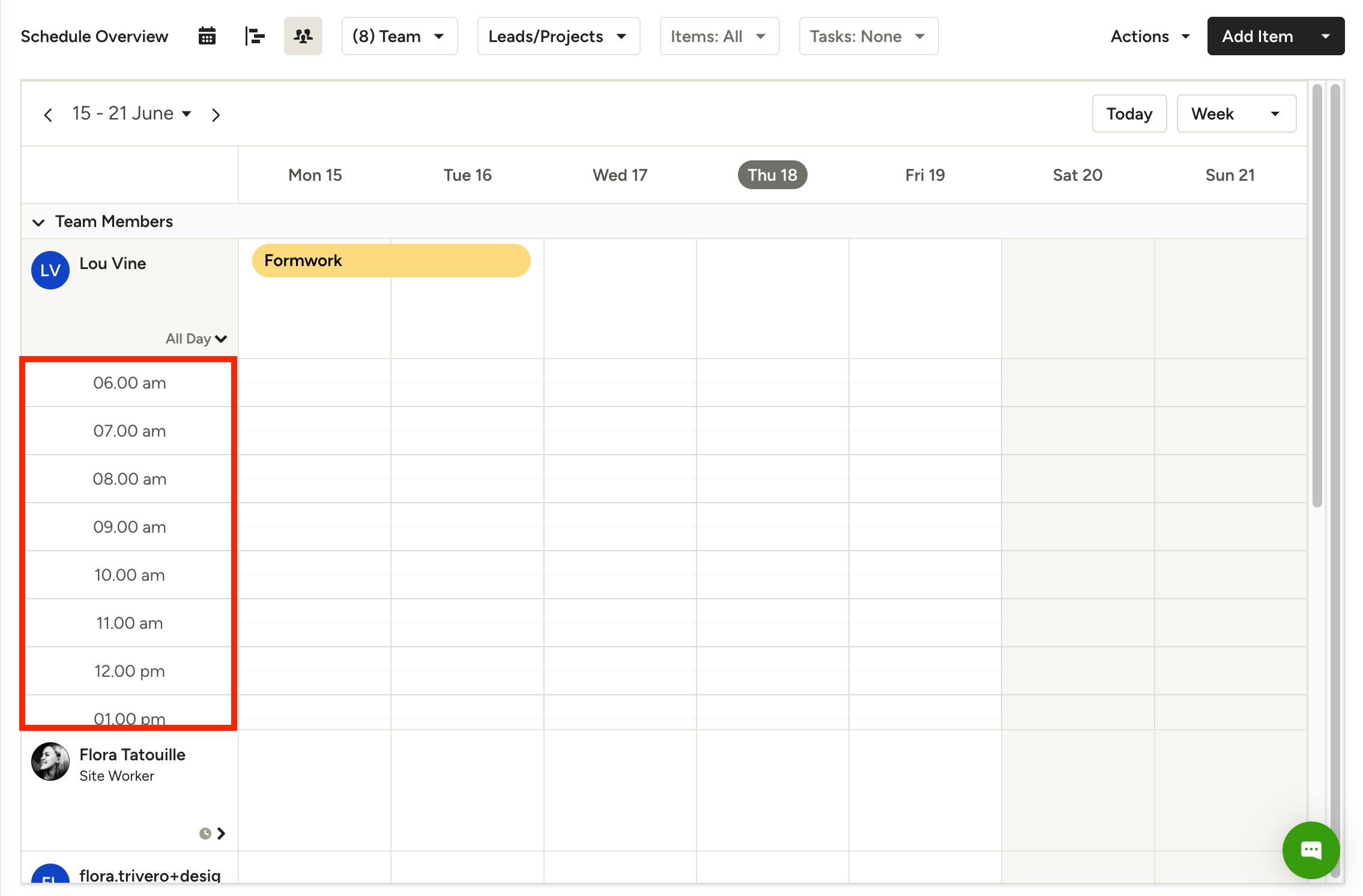
To see an even more granular breakdown, select the Clock icon underneath a team member or subcontractor's name. This will show an hourly breakdown of items and tasks (if relevant).
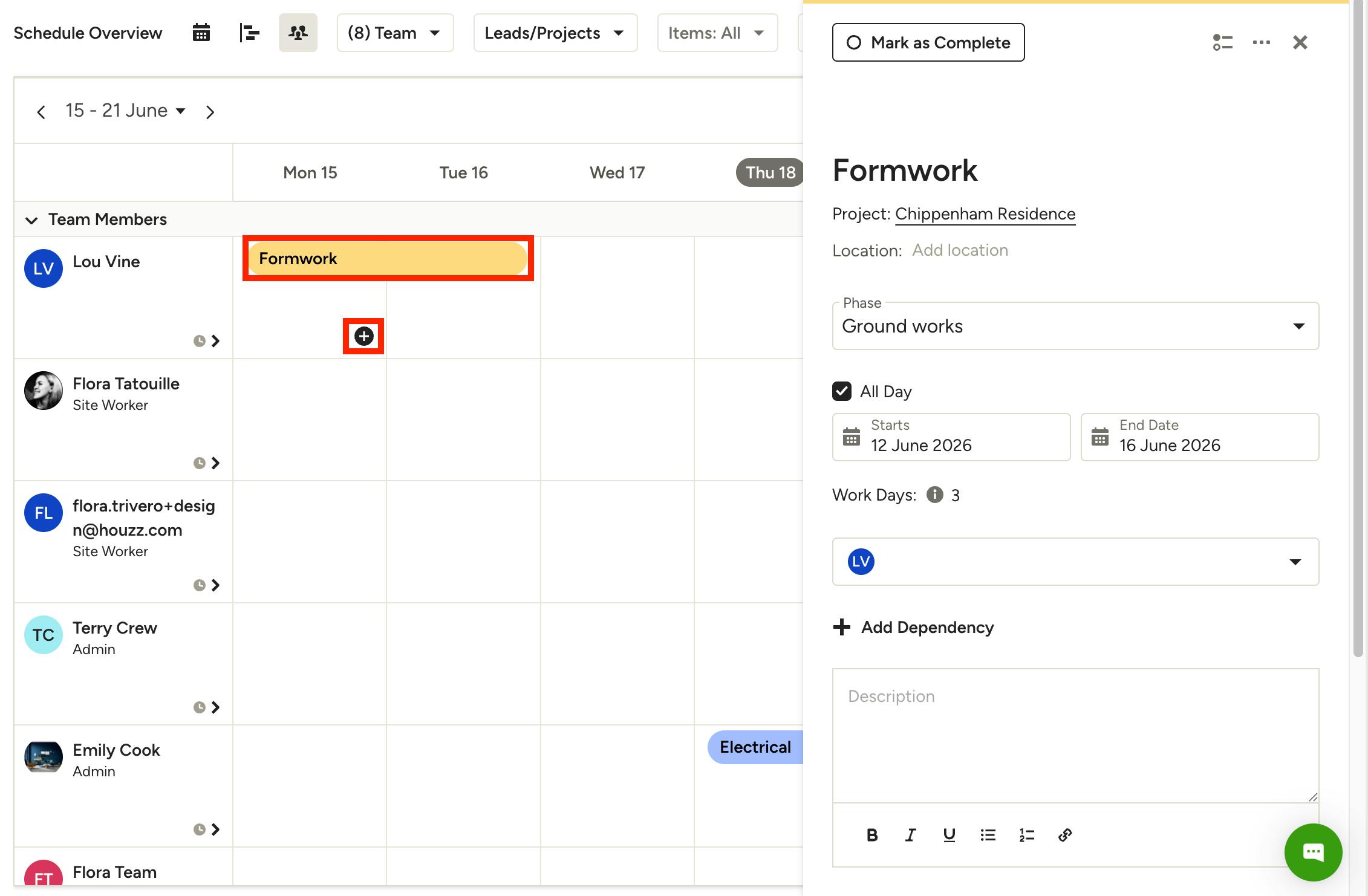
For each listed item, task or milestone, you can click on it to view and edit details.
You can also add new items or milestones by clicking the + icon for that calendar day, or you can select Add Item at the top of the team view.
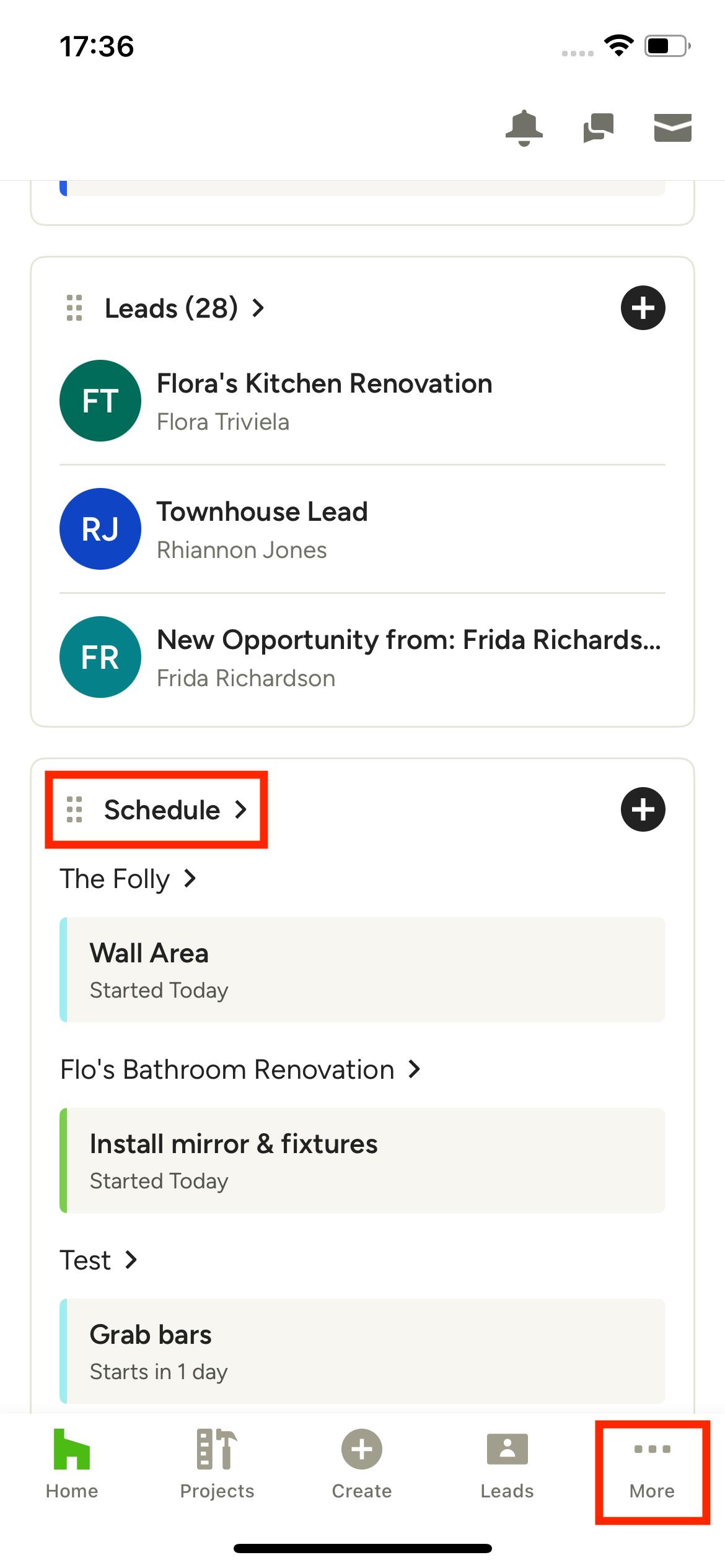
Schedule Overview on Mobile
The schedule overview is also available on the Houzz Pro mobile app. To access, select the Schedule section on your app homepage, or tap the More button in your bottom navigation, then select Schedule from the menu.
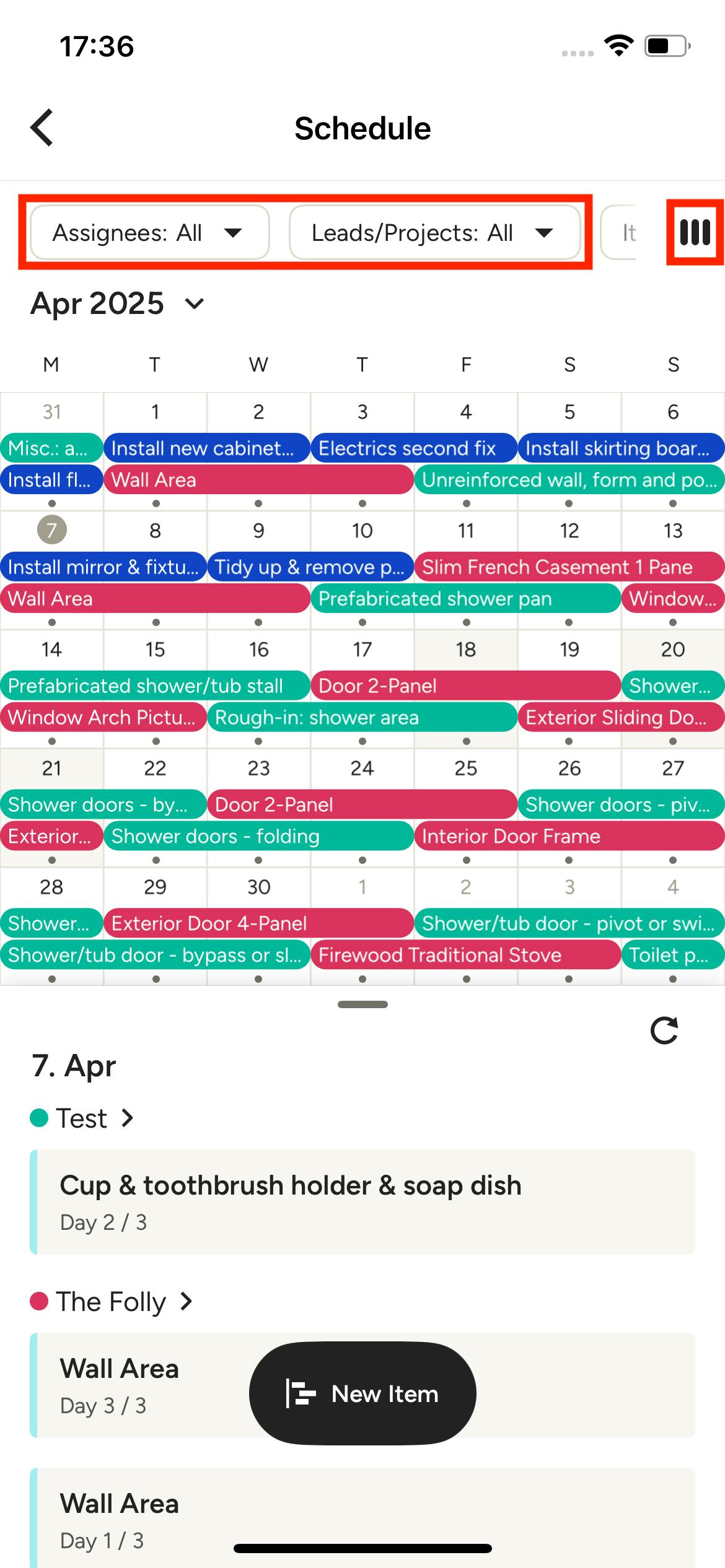
At the top of your schedule overview, you can adjust the filters, including assignees, projects/leads, and items.
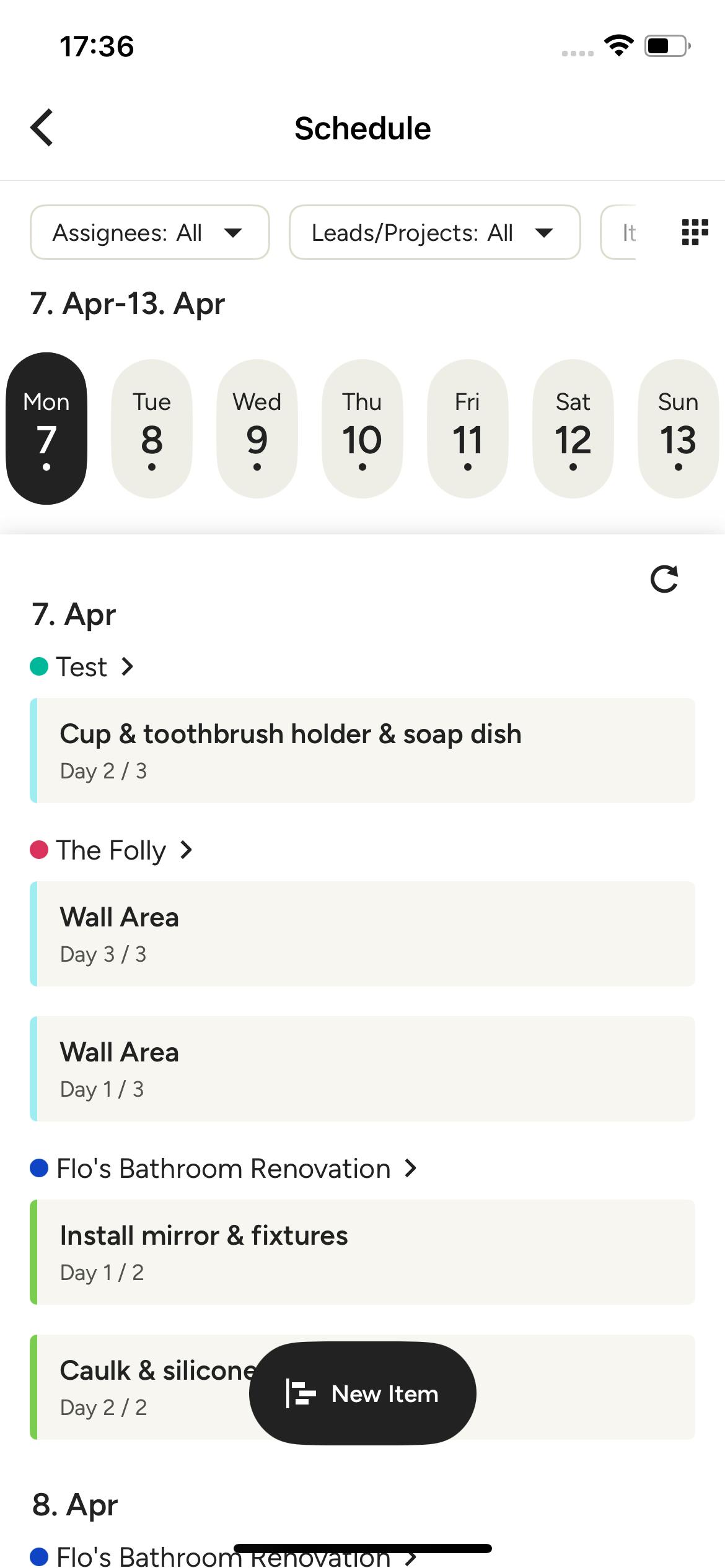
You can also tap the three lines icon at the top to adjust to a list view instead (as shown below). Please Note: Gantt and team calendar views are not available in the mobile app.