Offline Mode on the Houzz Pro App
Whether you’re in a basement with no service or at a remote site, Offline Mode ensures your workflow never hits a standstill. Even when an internet connection is unavailable, you can continue to have access to essential project data in the Houzz Pro mobile app.
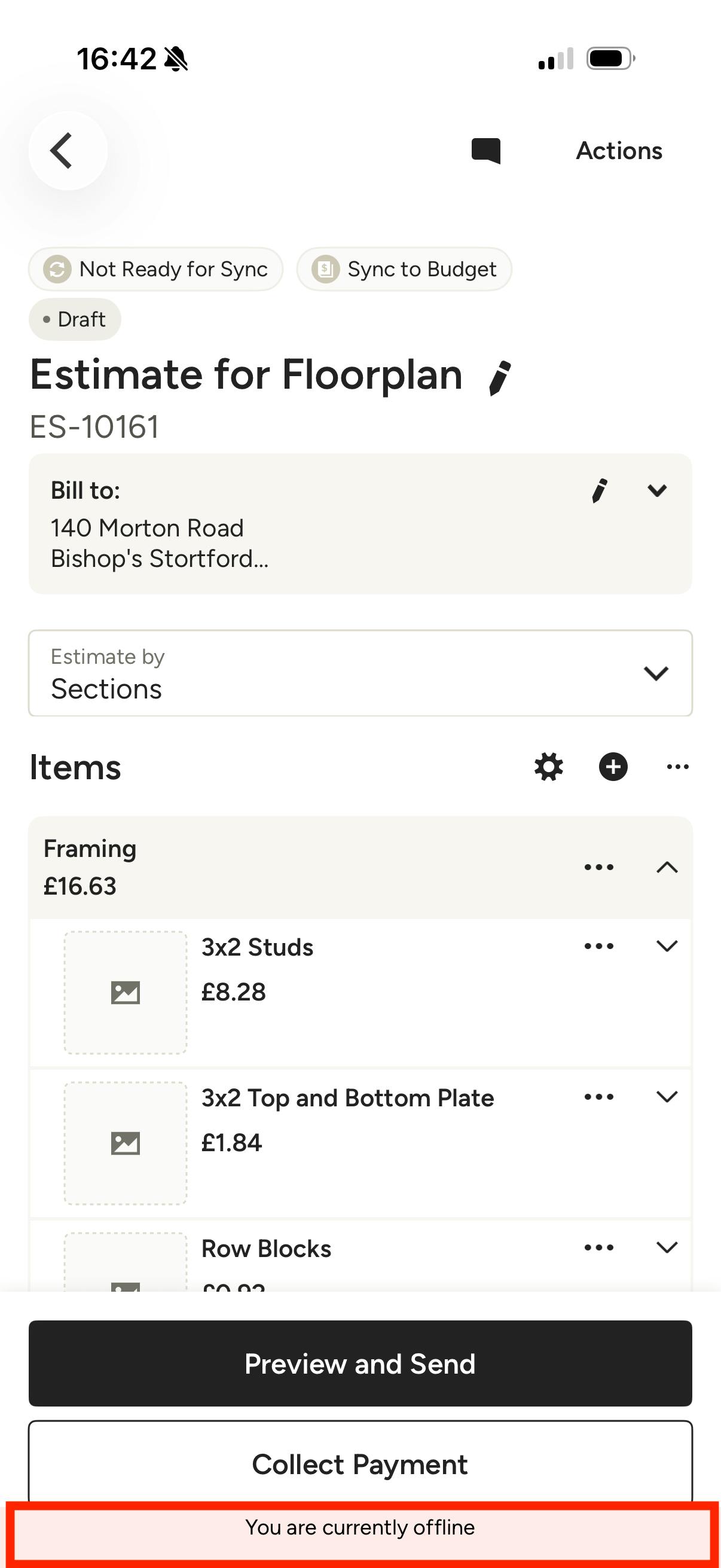
When you have no connection, You are Currently Offline will appear at the bottom of your screen to inform you of the change.
Offline Mode is primarily designed as a "view-only" experience to keep your project details accessible. If you attempt to edit existing records or create new items (like estimates or schedules) while disconnected, you will receive an error notification. The exceptions to this are Notes, Room Scans, Photos and Document Attachments.
Create Notes in Offline Mode
All devices have the ability to create an offline note, which allows you to continue to capture critical site details on the fly. The note will stay stored securely on your device until internet connection is restored.
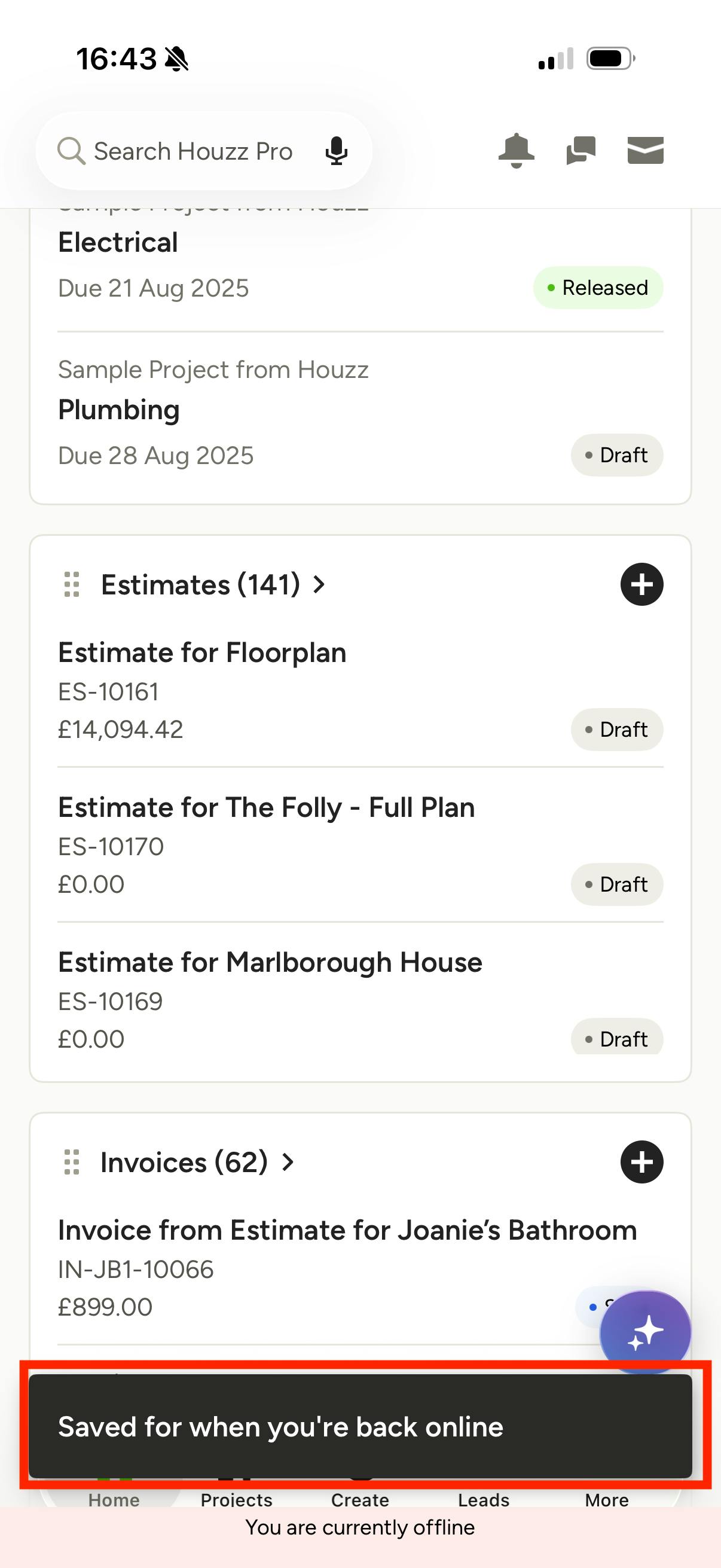
To create an offline note, click Create and then Note from the homepage or open your project and and go to the Notes section. After you tap Create, a message will appear at the bottom of your screen confirming that your note is saved and will upload once you’re back online.
Scan a Room in Offline Mode
If you need to do a room scan when offline, choose 3D Room Scan from the Create New section on the homepage, the Create + button at the bottom of the screen, or go to a project and click the plus sign to choose 3D Room Scan from the Create New menu.
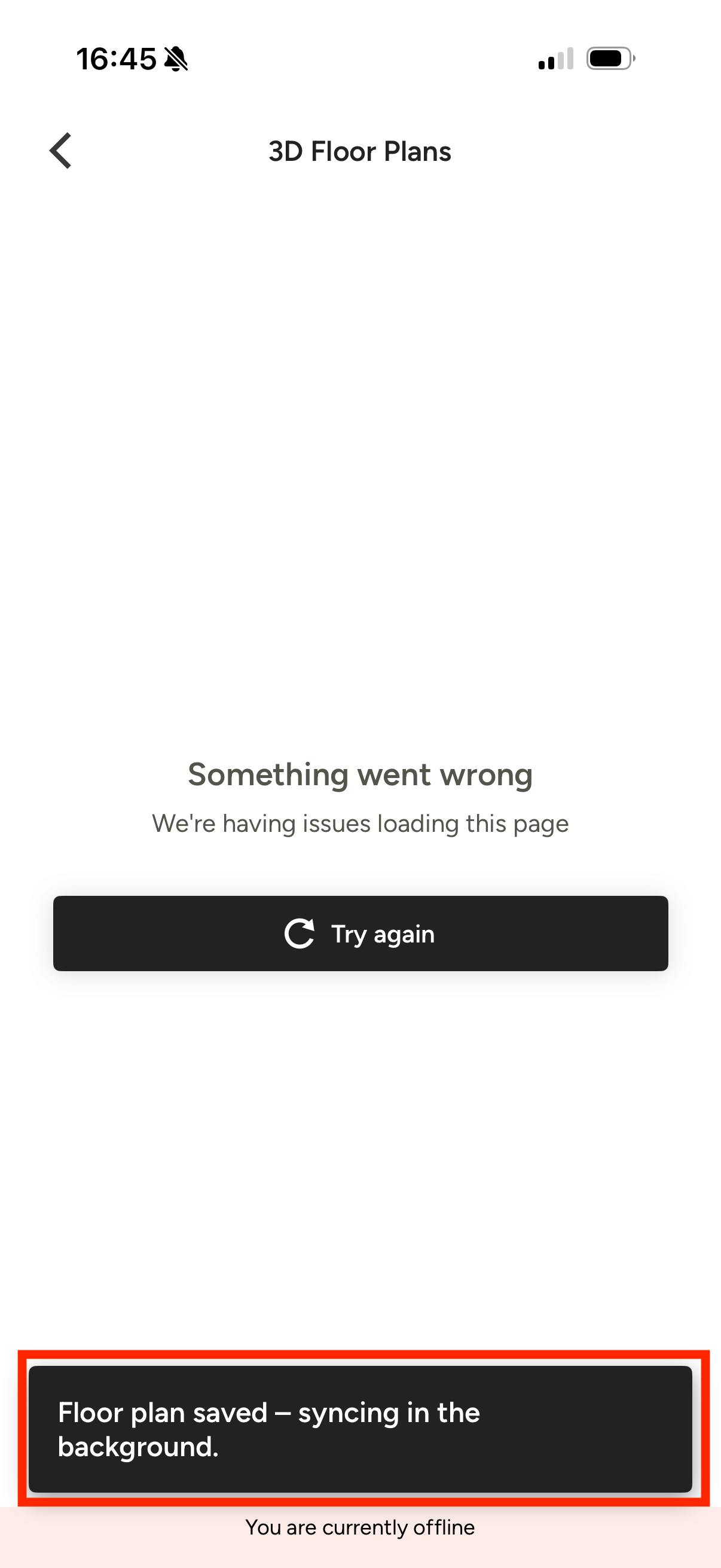
Scan your room and click Finish when done. You may see an error, but also a message saying your floor plan will be prepared when back online.
You can also add photos and attachments (to documents) when offline.
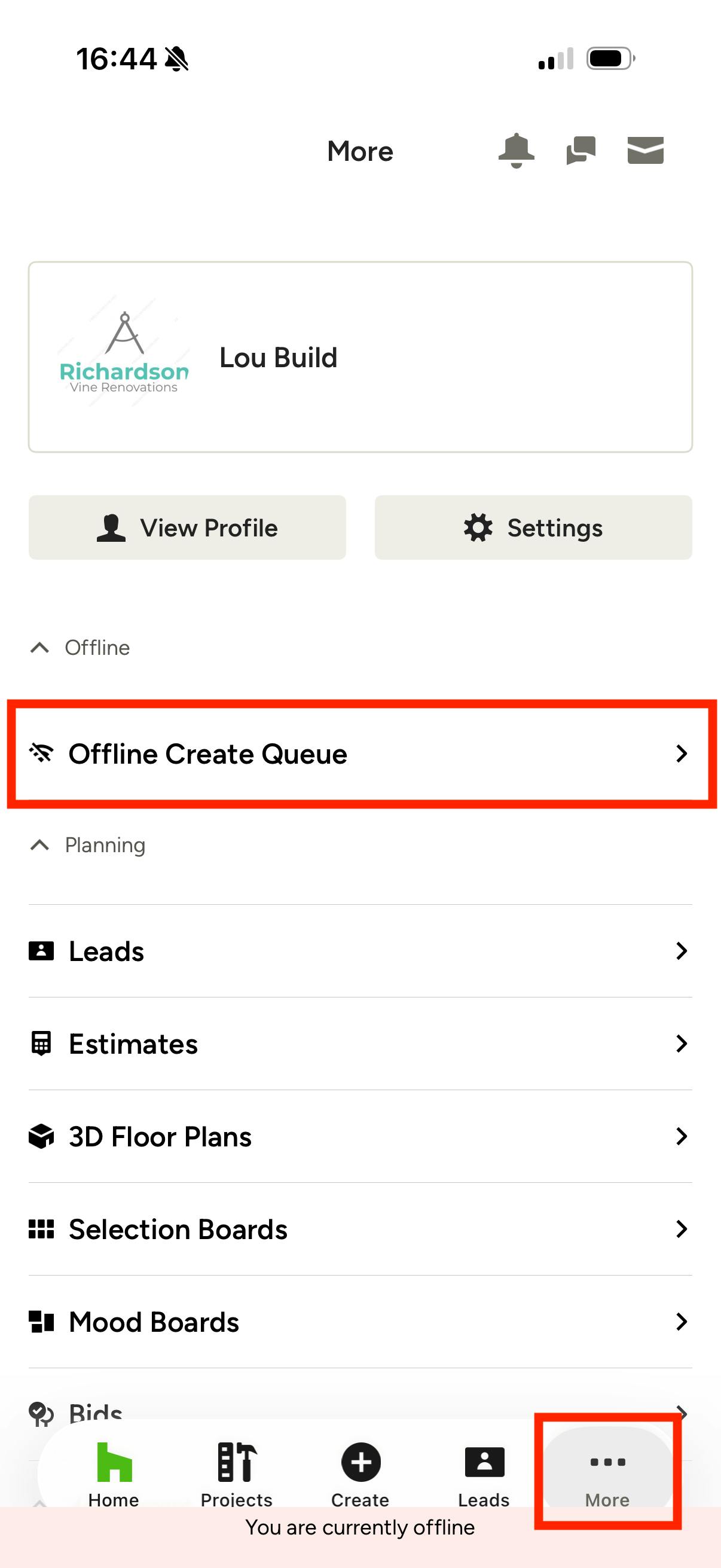
All your pending items will appear in an Offline Create Queue. You can access this by tapping the More three dots icon from the bottom menu.
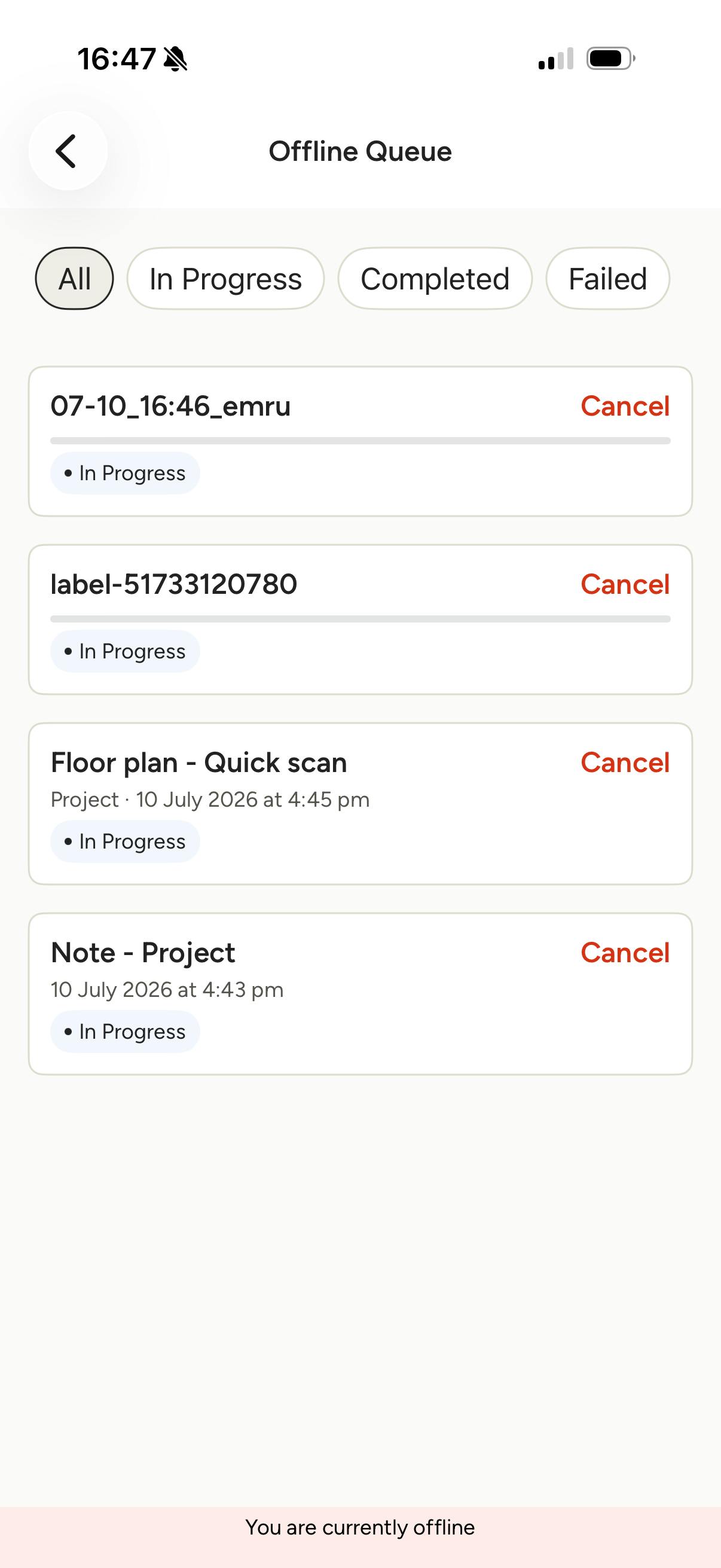
In the queue, the items will show as In Progress while internet connection is disrupted. Once internet is available, the items will be created and they will show as Completed in the offline queue.
You can then directly access the saved items within your project.